How to create and manage lists
Last updated: September 5, 2025
Overview
Lists are where contacts are stored in Sendlane, most commonly used to set up "buckets" of contacts for integration functionality and, less commonly, for sending to contacts.
Read on to learn how to create and manage lists!
Create a list
To create a list:
From your Sendlane dashboard, click Audience > Lists > +List
Enter a name for your list
Click Confirm to save your new list
Add contacts to an existing list
To add contacts to an existing list
Open the list
Click the Import button
Select your CSV file of Contacts
Map fields
Finish
Check out more details on importing contacts here!
New lists are reviewed before they can be used to send campaigns
When you import a list, the Sendlane Compliance team reviews it to ensure that your list is safe to send to.
This review process typically takes up to 24 business hours and is conducted from 9AM to 5PM PST, Monday through Friday. Your list will be reviewed in the order it was received.
During this process, you may see the following statuses next to your import:
| 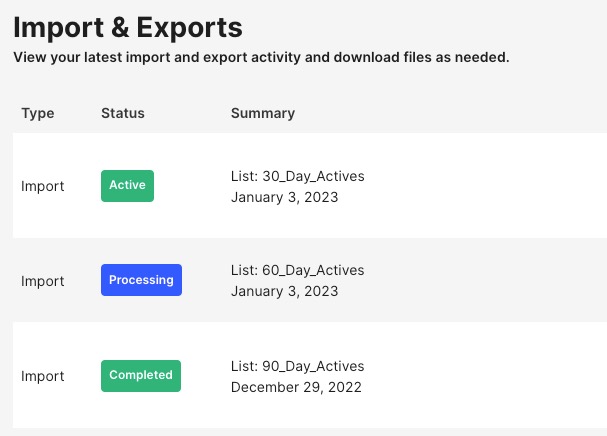 |
The first 3-5 Campaign sends to a new Audience will be on Manual Approval
Read Sending Campaigns While on List Review for more information on the list review and manual approval process.
Your list review status will be removed after three to five sends so that our Compliance team can determine the health of your list.
Contact your Customer Success Manager or reply to the email you receive from our Compliance team for more information.
Edit list details
To edit a List's details, click the arrow in the View column next to the desired List:
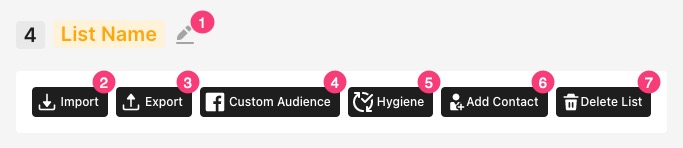
Use the top container of the View List sidebar to
Edit a List's name
Import Contacts to a List
Export Contacts from a List to .CSV or .TXT
Add Contacts from a List to a Facebook Custom Audience
Start List Hygiene
Manually add a single Contact to a List
Delete a List (deleting a List permanently deletes all associated data such as segments, subscriptions, activity, and all Contacts who are not associated with other Lists)
Troubleshooting
Why are the contact counts on the list page different than the number of contacts I know have been added to the list?
The list page's count of contacts on each list can take up to 24 hours to update.
If you are actively adding contacts to a list via a form or automation, reporting on the list page may not be accurate in real time.