How to send an SMS campaign
Last updated: July 8, 2025
Overview
SMS campaigns are one-time, broadcast-style SMS text messages that you can use to send updates, announcements, or other marketing content to your audience.
Read on to learn how to build and send an SMS campaign.
Step One: Create an SMS campaign
To create an SMS campaign:
Click the Campaigns icon
Click New Campaign
Click Create SMS Campaign
Step Two: Configure SMS campaign settings
In the Campaign Name field, enter a descriptive name to identify your campaign. This name is only visible in your Sendlane account and will not be visible to contacts.
Audience
Send to dropdown: Select lists, segments, or tags that you want to send your SMS campaign to
Don't send to dropdown*: Select lists, segments, or tags that you do not want to receive your SMS campaign
To see how many contacts are estimated in your selected audience, check the Audience size estimate section
*Note that the don't send to section overrides the send to section. For example, if the Jewelry list is in the Send to section and the Apparel tag is in the Don't send section, contacts with the Apparel tag applied to their contact profile will not be sent the SMS campaign, even if they are also on the Jewelry list.
Advanced
If you'd like to override your global UTM settings, check the Customize UTM tracking checkbox and make your desired changes.
Step Three: Add SMS campaign content
Your SMS campaigns should always include text and a tracking link. You can also optionally include images, audio files, video files, and emojis; these optional elements turn your SMS campaign into an MMS campaign, which uses more credits.
Read the following section to learn how to construct your SMS campaign message, and read 📄 Understanding SMS credit calculation for detailed information about the SMS credit estimates you'll see in the SMS message builder.
Text Message
Enter your SMS campaign’s content in the Text Message box and see a preview of your campaign as it will appear in your contacts’ text messaging app.
The SMS campaign builder will automatically alert you if you include a word that is considered a spam indicator by carriers and will not let the SMS campaign go out until the potential spam keyword is removed.
Use the buttons in the bottom right corner to:
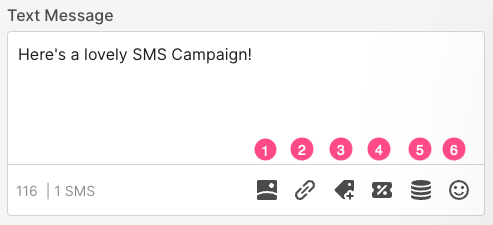
Insert MMS - MMS Messages are limited to JPG, .JPEG, .PNG, .GIF, .MP3, .MP4 .AC3, .WAV, .MIDI, and .AMR files of 500KB or less. MMS Messages have a flat cost of 3 credits and a 1,000 character limit.
Tracking link builder
Add personalization
Add a unique coupon code
Add custom data
Add an emoji
Tracking Link
To track engagement (clicks), you must add a link to your SMS message that leads back to your website. SMS messages cannot collect open rates because there is no tracking pixel in an SMS message. All tracking links must begin with HTTP:// or HTTPS://
You can use the tracking link builder to create individual tracking links or automatically turn all links in the Text Message window into tracking links by checking the Automatically Track Links checkbox:
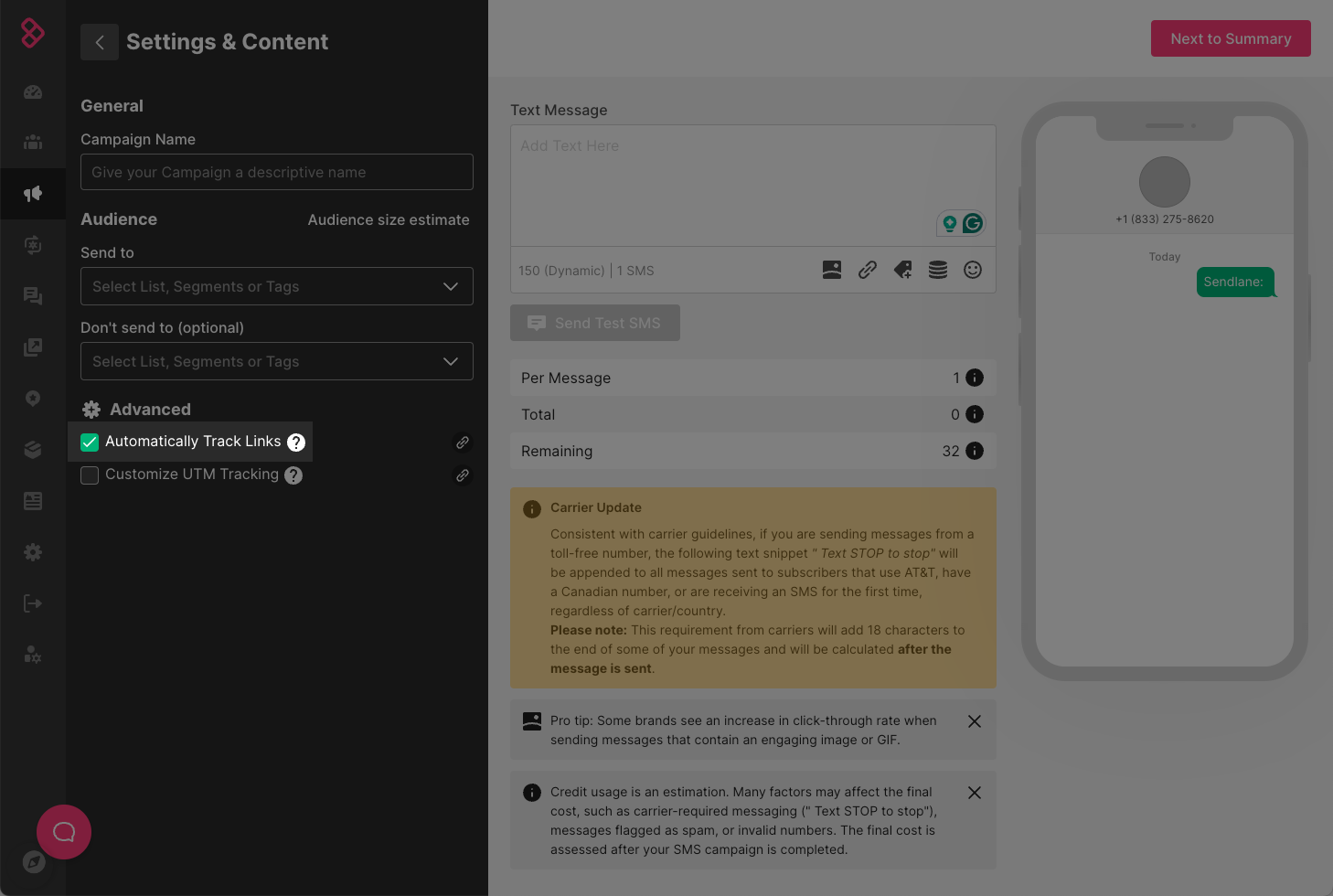
You can use the tracking link builder to select a tag to apply to the profiles of contacts who click the tracking link. To use the link builder:
Click the Create Link icon
insert your link, starting with
HTTP://orHTTPS://select a Tag to apply from the Tag dropdown.
Click Create to save your tracking link!
Whether you check the Automatically Track Links checkbox or use the link builder, ensure the tracking link 1) appears in blue text in the Text Message box and 2) as a shortened link using your subdomain in the preview.
Links that do not appear in blue text and shortened in the preview will not track clicks.

Do not copy tracking links from previous messages into new messages
Tracking links are permanently tied to the message they were created in. If you create a tracking link for campaign A, then copy and paste the tracking link from campaign A into campaign B, click and revenue data from campaign B will be attached to campaign A where the tracking link originated.
Step Four: Note the estimated cost of your SMS campaign
Use the credit counters in the bottom left of the Message screen to estimate how many credits your SMS campaign will cost per message, the total number of credits that will be used based on the Audience you selected, and the number of SMS credits remaining in your account.
The actual cost of your SMS campaign may not be reflected in the counter because:
Your business name will be appended to all SMS messages to identify you as the sender
Emojis change your message's encoding and increase the number of credits used
Contacts receive an opt-in confirmation when they receive their first SMS message from you
Step Five: Send a test message
Send a test of your SMS campaign by clicking Send Test SMS. Enter phone numbers separated by commas and click Send to send your test. Test messages will use SMS sending credits to send.
Try sending a test message to different devices and operating systems to ensure your content displays properly for all your contacts!
Click Next to Summary to save your message’s Content and continue!
Step Six: Set SMS campaign schedule
Schedule
Select one of the following options for your SMS campaign:
Save as Draft Save your campaign in your Sendlane account to send later
Send Immediately Send your campaign right away
Schedule Select a date and time for your campaign to be sent
When your campaign sends, you’ll see its progress on your SMS campaigns page! Once it’s out, come back in 24 hours to dive into your campaign’s reporting.
Optional Settings
Select the Skip contacts during quiet hours checkbox if you want contacts who will be in quiet hours when your campaign sends not to receive your SMS campaign once they are out of quiet hours. Leave the box unchecked to send the SMS campaign to quiet hours contacts once they are out of quiet hours.
SMS messages will not deliver or be queued for contacts who have not provided consent
SMS messages will not send to contacts without consent recorded. contacts who have not opted in will not receive the message or have it queued to send when consent is recorded, and contacts will not be included in report numbers.
What if someone responds to your SMS campaign message? Check out our guide to the Sendlane Reply Center to engage directly with your contacts!
Troubleshooting
Why does my SMS campaign say "Stopped" on the SMS campaigns page?
SMS campaigns are generally stopped due to being blocked by wireless carriers. If you have questions about a stopped campaign, please contact your Customer Success Manager or our 24/7 Product Support team!
Why didn't my SMS campaign go out?
Your SMS campaign may not have gone out if:
Your account didn't have enough SMS credits to complete the send. Upgrade your SMS account to send your campaign!
You have a custom SMS plan and were out of credits when your campaign started sending. Custom SMS plans do not auto-upgrade. contact your Customer Success Manager for more details.
You attempted to send a campaign earlier than 8 AM or later than 8 PM. If SMS messages are scheduled or attempted to send immediately after 8 PM, the campaign will be sent the following morning at 8 AM due to quiet hour legal restrictions.
Please contact your Customer Success Manager or our 24/7 support team if none of the above situations apply so we can get your SMS campaign out as soon as possible!
My campaign report shows that I received replies to my campaign, but I don't see them in the reply center!
Replies recorded in your campaign report that do not appear in the reply center are messages containing STOP or other unsubscribe keywords. Unsubscribe messages are not visible in the reply center.