How to display products in SMS messages
Last updated: July 8, 2025
Overview
You can manually insert static product images into any SMS message or include dynamic product images in automations using certain triggers.
Read on to learn how to show product images in an SMS message.
How to insert a product image in SMS messages
You can manually insert an image of a product in any SMS message, or check the include product image checkbox available in the automation builder for certain automation triggers.
Including a manually selected or dynamically inserted image will convert your SMS message into an MMS message. MMS messages cost roughly three times as much as an SMS message.
Manual product images
To manually display a product image:
Click the MMS icon in the SMS message builder
Select an image from your desktop or media library
Click Insert
Dynamic product images
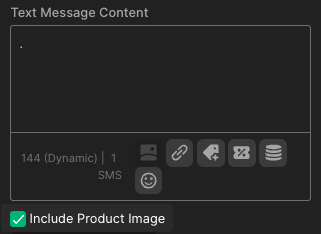
To dynamically display a product image in automations using certain triggers, check the Include Product Image checkbox in the SMS message builder:
Types of product images in SMS messages
Dynamic product images that show different products to contacts based on their activity are only available in automations using some eCommerce integration triggers.
The table below explains what image is shown if the Include Product Image checkbox is checked in a qualifying SMS automation node:
Type of SMS message | Image inserted |
Product viewed automation | Image of the product the contact viewed |
Added to cart automation | Image of the product the contact clicked "add to cart" on |
Abandoned browse automation | Image of the product the contact viewed and abandoned |
Abandoned cart automation | Image of the product the contact clicked "add to cart" on and abandoned |
Abandoned checkout automation | Image of a product in the abandoned checkout |
Checkout complete | Image of a product in the completed checkout |
Product purchased | Image of the product purchased |
Product variant purchased | Image of the product variant purchased |
Order placed | Image of a product in the order |