How to configure end automation settings
Last updated: April 8, 2025
Overview
You can stop a contact from moving through an automation based on criteria you specify, such as the contact purchasing a certain item or subscribing to another list of yours, with end automation settings.
Read on to learn about pulling contacts out of automations with end automation settings.
What are end automation settings?
End automation settings are conditional logic criteria that you set to determine when a contact should stop moving through an automation and are available on all automation triggers.
Each node in an automation is scheduled as soon as contacts trigger the automation. For example, let's say you have an active order placed automation that starts with a conditional split to check for certain items in the order, then an email node > wait node > second email node under each path.
When contacts place an order, the automation creates a schedule for the actions in the automation. First (nearly instantly), the automation checks the conditional split to determine which path they should go down. Then, the first email is sent, and the second email is scheduled to be sent at the time determined by the wait node. These actions are all scheduled when the automation is triggered.
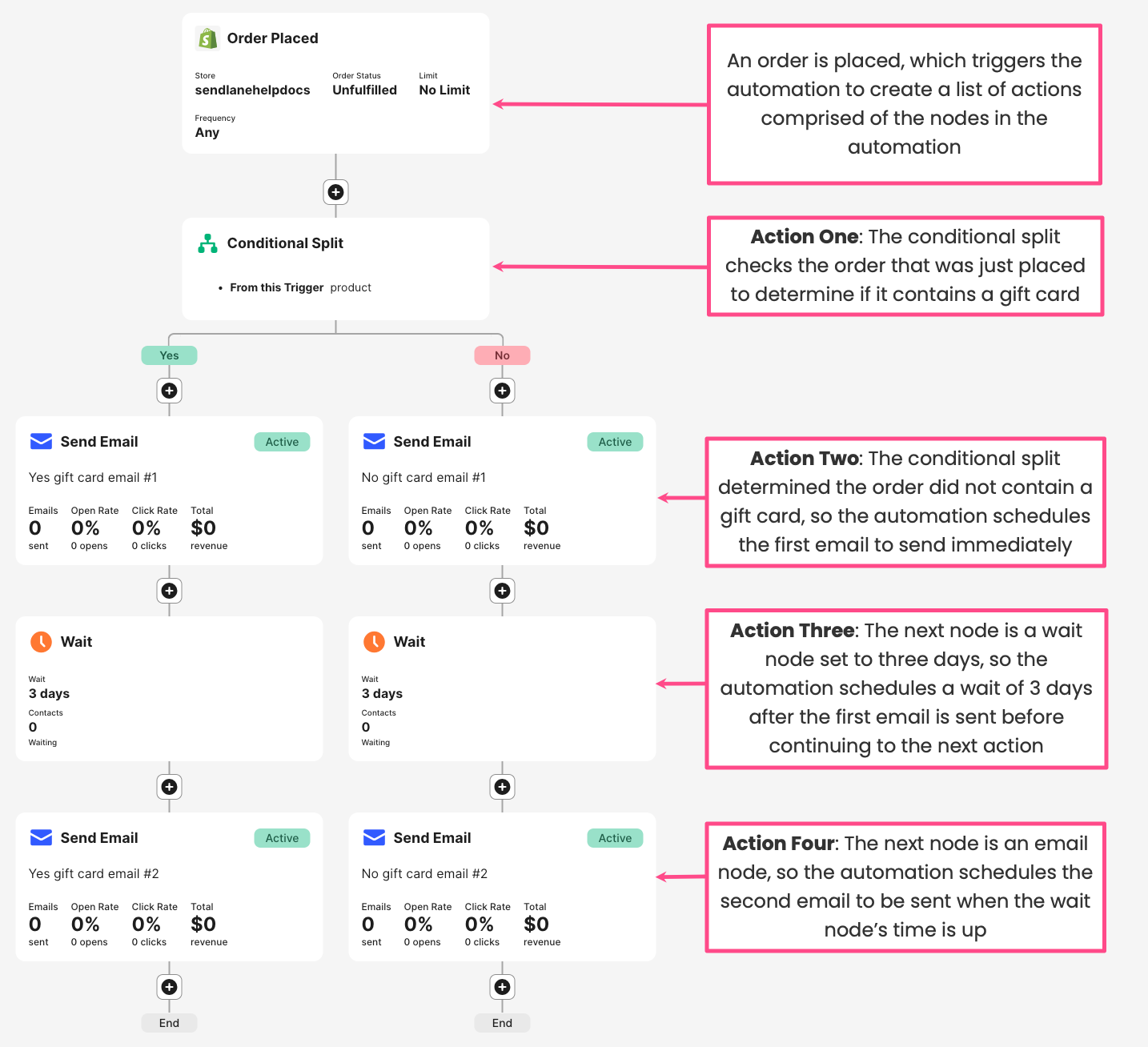
The second email contains a call to action inviting contacts to place another order. But if contacts place another order before receiving that second email, the second email might feel overbearing.
This is where end automations come in handy: you can configure them to end the automation for contacts as soon as they place another order after entering the automation, sparing them that second email.
Configure end automation settings
To configure end automation settings for your automation:
Add a trigger to your automation
Under your trigger's settings, click Edit next to End Automation
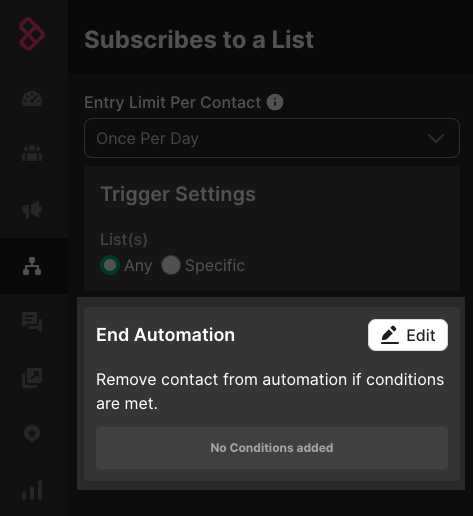
Set your criteria
Click Save
To edit end automation settings:
Click your automation's trigger
Click Edit next to End Automation
Make your desired changes
Click Save
To remove end automation settings:
Click your automation's trigger
Click Edit next to End Automation
In the upper right corner, click Remove all
Click Save
End automation setting options
Configuring end automation settings is very similar to configuring segments or conditional splits. You can add multiple AND/OR statements to your end automation settings.
Review the table below for all available end automation setting options:
Option | Operator | Description |
Average Order Value | Is equal to, Is less than, Is greater than | Average order value for a contact across all stores in an account. Values must be entered with a decimal place and cents ( |
Country | is, is not | Country entered in contact's profile in your eCommerce store |
Custom field | See description |
|
Device |
| Contact device used |
Is, Not, Contains, Does Not Contain, Starts With, Ends With | Contact email address | |
Email Consent | Subscribed, Unsubscribed, Never Subscribed | Contact's subscription status |
Event Tracking |
| Contact's interaction with an event |
First Name | Is, Not, Contains, Does Not Contain, Starts With, Ends With | Contact first name |
Forms | Signup by form, Not signup by form | Contact's signup method |
In automation | Is in automation, not in automation | Contact's current presence of absence in a specified automation (not retroactive; this condition looks at whether the contact is or isn't in the automation as of the time the automation with end automation settings was triggered) |
Last Name | Is, Not, Contains, Does Not Contain, Starts With, Ends With | Contact last name |
Lifetime Value | Is equal to, Is less than, Is greater than | Lifetime value of a contact across all stores in an account. Values must be entered with a decimal place and cents ( |
List | Is on list, Not on list | Contact's presence or absence on a specified list |
Phone | Is, Not, Contains, Does Not Contain, Starts With, Ends With, Exists, Does Not Exist | Contact's phone number's digits |
Signup Source |
| Contact opt-in type |
SMS Consent | Has, Does Not Have | Contact's SMS consent status |
Subscriber activity | Opened, clicked, did not open, did not click, sent, did reply, did not reply, last site visit, last product view, last added to cart | Contact's interaction with campaign and automation messages, and website activity |
Subscription Date | Is, Is After, Is Before, In the Last, Not In the Last, Before the Last | Contact opt-in date |
Tag | Has tag, does not have tag | Contact profile's tags |
Zip/Postal | Is, Not, Contains, Does Not Contain, Starts With, Ends With, In, Not In | Zip code stored in the contact's profile (to search multiple Zip/Postal codes select In or Not In and separate multiple zip codes with commas) |
eCommerce integration (Shopify, BigCommerce, custom integration) | See segment options for your eCommerce integration here. |
*Contacts with incorrectly formatted dates in their custom fields (i.e., with timestamps) will not be included in segments using these conditions.