How to use automation trigger data in conditional splits
Last updated: April 22, 2025
Overview
You can direct your contacts' journeys through automations with conditional splits that use data from the event that triggered the automation.
For example, you can add a conditional split to an automation using the order placed trigger with paths determined by the products in the order that was placed.
Read on to learn more about how to use the data from events that trigger your automations in conditional splits.
How automation trigger data works
Automations are like security guards who are on alert for specific scenarios and have been trained to act when those scenarios occur.
Imagine a security guard at a store. The guard has been trained to look for behaviors like someone taking an item off the shelf and putting it in their bag, or taking an item and sprinting out of the store. In these specified scenarios, the guard will spring into action. Other behaviors, like people calmly browsing in the store, do not activate the guard's training, so the guard takes no action.
When you save the settings on your automation's trigger, you've finished "training" your automation on what behaviors to look for and subsequently act on.
In an automation using the order placed automation, your automation has been "trained" to look for completed orders in your store. The order placed automation does not retain any information regarding a website visitor's browsing, cart building, or checkout process because it's not what the automation has been trained for.
When an order is placed, the automation notices and springs into action, gathering information from your store: the order placed event. This "event" is a webhook and contains relevant data from the event in the form of a payload.
An order placed payload contains data about when and how the order was placed, the person who placed the order, the items in the order, and the costs associated with the order.
This data can be used in conditional splits to create separate paths in your order placed automation based on any piece of data you want to use.
An order placed payload looks something like this:
{
    "event": "order_placed",
    "token": "ABCDEFGHIJKLM1234567890",
    "order_id": 1001,
    "email": "shawn@sendlane.com",
    "status": "processing",
    "subtotal": 19.99,
    "total_tax": 0,
    "total": 19.99,
    "total_items": 1,
    "currency": "USD",
    "discounts": {
        "discount_code": "25OFF",
        "discount_value": 4.99
    },
    "line_items": [
        {
            "product_id": 12345678,
            "sku": "ABC123",
            "product_name": "tshirt #1",
            "quantity": 1,
            "item_price": 19.99,
            "total": 19.99,
        },
        {
            "product_id": 12345679,
            "sku": "ABC124",
            "product_name": "tshirt #2",
            "quantity": 1,
            "item_price": 19.99,
            "total": 19.99,
        }
    ],
    "billing_address": {
        "first_name": "Shawn",
        "last_name": "Gaide",
        "email": "shawn@sendlane.com",
        "company": "Sendlane",
        "address_1": "10620 Treena St",
        "address_2": "UNIT 250",
        "city": "San Diego",
        "state": "California",
        "state_code": "CA",
        "country": "United States",
        "country_code": "US",
        "postal_code": "92131",
        "phone": "8885552664"
    },
    "shipping_address": {
        "first_name": "Shawn",
        "last_name": "Gaide",
        "email": "shawn@sendlane.com",
        "company": "Sendlane",
        "address_1": "10620 Treena St",
        "address_2": "UNIT 250",
        "city": "San Diego",
        "state": "California",
        "state_code": "CA",
        "country": "United States",
        "country_code": "US",
        "postal_code": "92131",
        "phone": "8885552664"
    },
    "customer_id": 123456789,
    "accepts_marketing": true,
}
You could use any of these data points as criteria in a conditional split; like subtotal is greater than or equal to an amount or billing address country is not a certain country.
Create a conditional split using automation trigger data
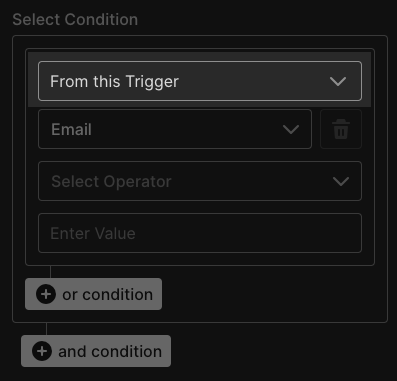
You can create a conditional split using your trigger's payload data by selecting the From this Trigger option in the conditional split builder:
You might want to create a conditional split based on the amount spent in the order so that you can offer a coupon to purchasers who spent under the limit you set in order to entice them to place another larger order.
To set up this split:
Add a conditional split to your automation
Select From this Trigger as your condition
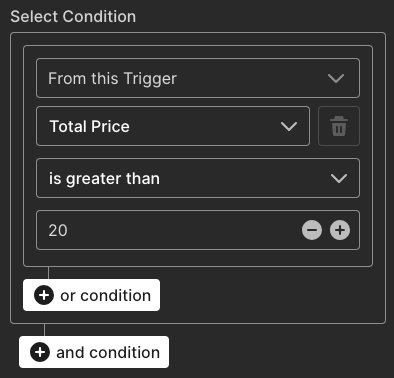
Select Total Price
Select is greater than
Enter your desired amount
Click Done
In the example conditional split below, the Yes path will be for contacts whose orders are greater than $20.00 and the No path will be for contacts whose orders are less than $20.00:
Learn more about conditional splits in 📄 How to use conditional splits in automations