How to A/B test automation emails with experiments
Last updated: February 28, 2025
Overview
You can test up to 4 versions of an automation email with different subjects, preheaders, and/or content to identify the email that performs best with a subset of your audience, then send the winner to the remainder of your audience.
Don't use Experiments and Machine Learning Open Predictability (MLOP) together
Because MLOP sends a automation email to each audience member at a different time, enabling MLOP while using Experiments means fewer contacts are available to interact with the automation email before a winner is chosen.
Step One: Configure automation email experiment settings
To turn on experiments for a automation email:
Open the automation email
Check the Experiments checkbox in the Advanced Settings section of the Settings & Content screen.
The Experiments settings will display when the checkbox is checked.
Components
Select which part(s) of your email you want to create variations for (subject, preheader, and/or content).
Duration
Select a method for sending your automation email experiments and determining a winner:
Specific amount of time - Set an amount of time to let the experiment run for before determining a winner
Total emails to be sent - Set a number of emails to send before determining a winner
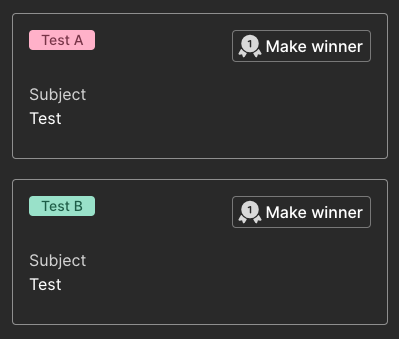
Ongoing - No limit will be placed on how many experiment emails are sent or for how long; you'll come back to the email's settings and select the winner manually
Winning Version
Select the factor that determines the winning email (click rate, open rate, or revenue) and the number of hours to let the experiment run before sending the winning email to the rest of the audience.
Step Two: Create multiple email variations
On the Content page, you'll see a column for the first version of your email and options to create a new version from scratch by clicking Blank Experiment or copying the original email by clicking Copy A.
Create or copy up to four versions, then click Save and activate your emails!
Step Three: Review automation email experiment reporting
Identify automation emails that ran experiments by the experiment icon in the email node:
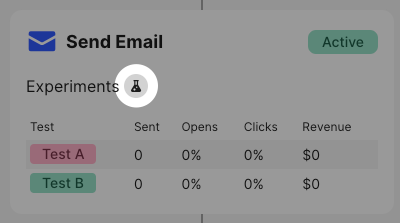
View the results of your automation email experiment by clicking the email node.
If you selected ongoing as your experiment duration, you'll see "make winner" buttons to manually select your experiment's winner.