How to Integrate Recharge and Sendlane
Last updated: March 11, 2025
Overview
Integrate Recharge and Sendlane to use your Shopify or BigCommerce store's subscription data to target customers based on their activity and preferences!
Before getting started
Sign up for a Recharge account
Have either Shopify or BigCommerce integrated with Sendlane
Renewed subscriptions will not be attributed to campaigns
Contacts' initial subscription purchases are attributed to campaigns, but subscription renewals are not.
Subscription renewals are included in contacts' LTV.
Step One: Generate API keys in Recharge
API keys expire one year after creation
API keys expire one year from the day they are created. Set a reminder to replace your API key one year from the day you created it.
To generate your Recharge API keys:
Log in to Recharge
Click Apps
Click API Tokens
Click Create an API token
On the API token creation screen,
Enter a Token nickname and your email address
Set all permissions to "Read Access" ("Grant Access" for Customer Notifications)
click the terms of service agreement checkbox
click Save to generate your Access Token and Client Secret keys!
Step Two: Copy API Keys
You can access your Recharge keys at any time.
If you prefer to save your Recharge API keys on your device, follow the steps below to copy each key.
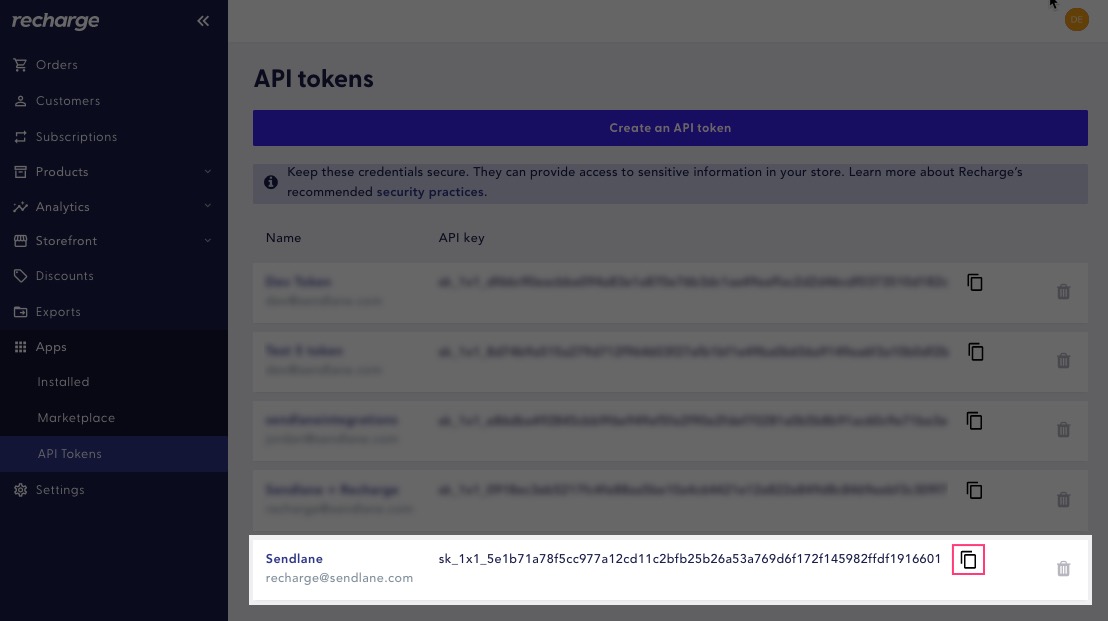
Copy your Access Token by clicking the copy icon next to the token you just created:
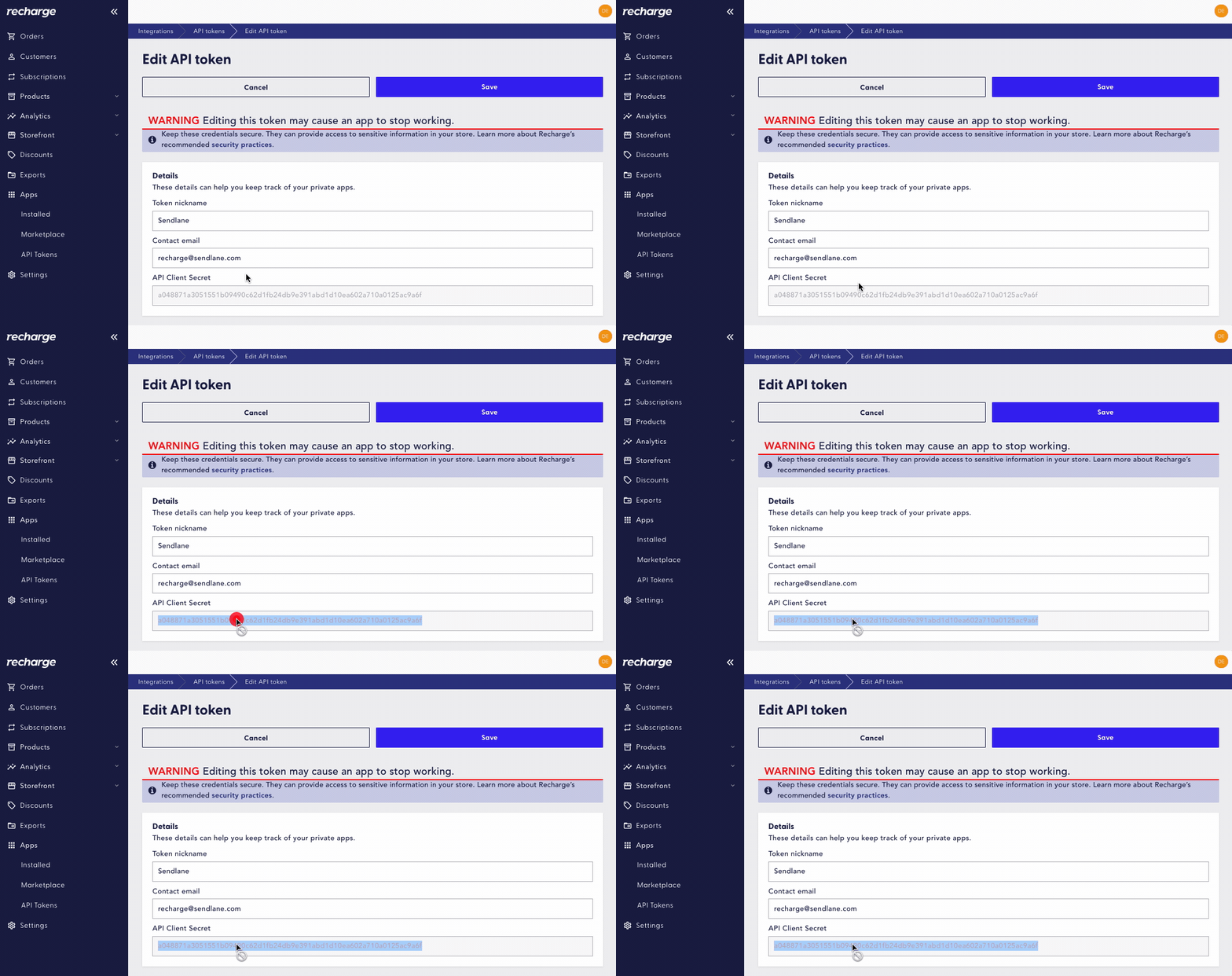
Copy your Client Secret key by clicking on your API token's nickname, then double-click the API Client Secret field and copy:
Step Three: Install Recharge integration in Sendlane
Click the Account icon
Search for and click on Recharge
Click Configure > Create New Recharge Integration
Enter your Recharge Store Name, Access Token, and Client Secret
Select your store as the Parent Integration
Click Continue to complete your integration!