How to create and manage saved blocks
Last updated: March 12, 2025
Overview
Saved blocks allow you to save common layout blocks for reuse across visual builder emails.
Read on to learn how to create, use, and manage saved blocks.
What is a saved block?
Saved blocks are layout blocks that are synced across all emails they are inserted into unless you decide to unlink them.
Use saved blocks to create common layouts like signatures, headers, or logos without creating them individually for each email.
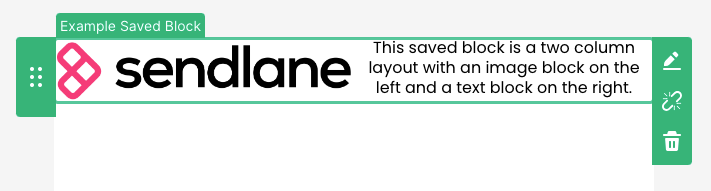
In the visual email builder, saved blocks are identified by their green selectors and a label bearing the block's name in the upper left corner.
Saved block limitations
Only available in the visual email builder
Cannot contain dynamic automation specific blocks like abandoned cart, price drop, or review request blocks
Cannot "nest" layouts within layouts
Layout style settings are not saved to your saved block library to avoid clashing with the various emails they are inserted into; you need to edit layout appearance for each saved block you insert
Save a layout
To save a layout for reuse:
Select the layout you want to save
Click the save icon*
Enter a descriptive name for your saved block
Optionally, select a category for your saved block
Click Save
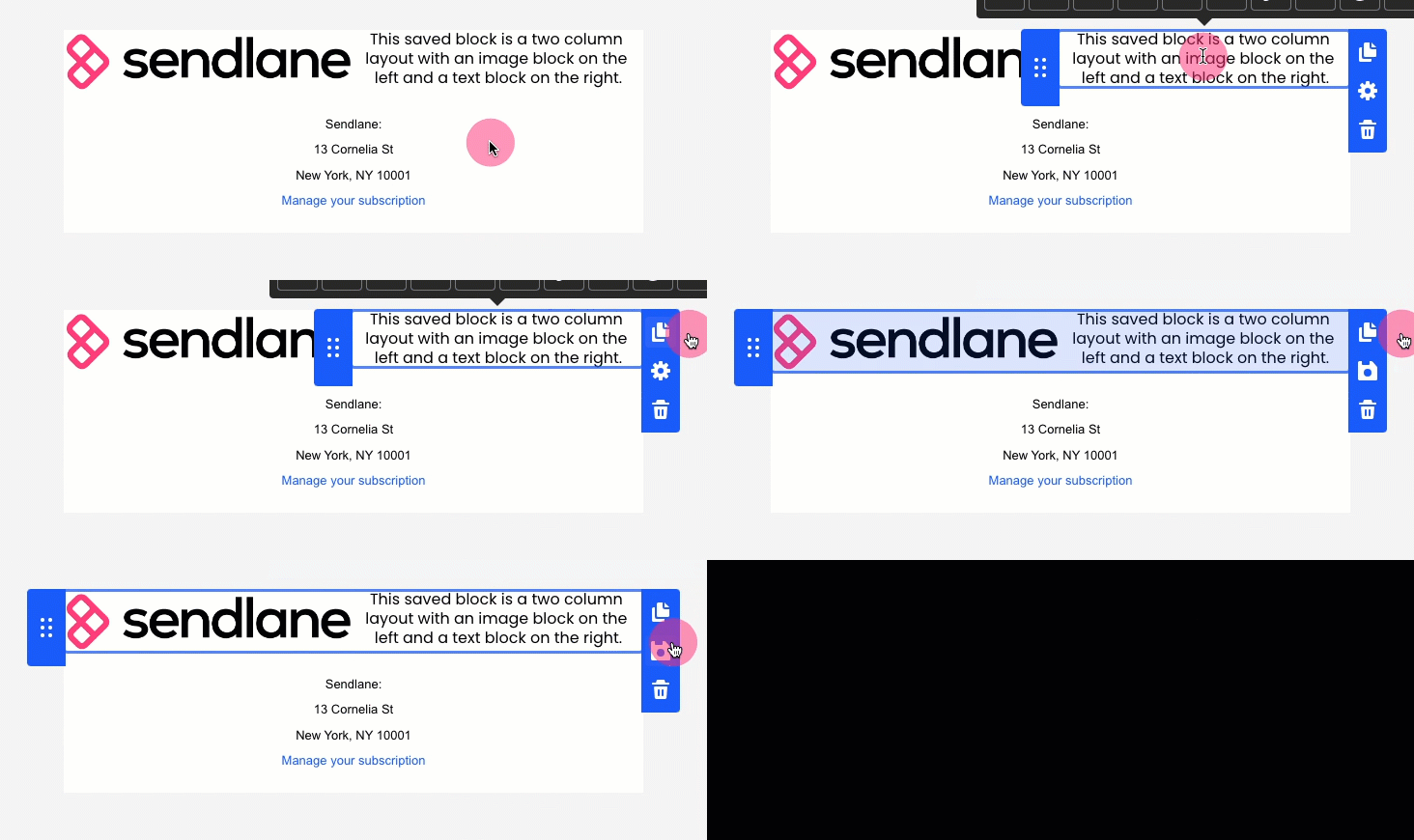
*If you don't see the save icon, you may have selected an individual element instead of the layout. Click just outside of the email builder to the right of the layout you want to select to highlight the layout and access the save icon:
Save a product block
Product blocks cannot be added to layouts, but you can save a product block as a saved block.
To save a product block:
Add a product block to your email
Configure your product block's settings
Click the save icon
Enter a descriptive name for your saved block
Optionally, select a category for your saved block
Click Save
Insert a saved block
To insert a saved block into an email:
Click the Saved Block element
Optionally, use the search bar to find the saved block
Click on the saved block or drag it into the email
Edit your saved block's layout settings
Unlink a saved block
Unlink a saved block to make changes to a saved block that you don't want to be applied to the block in other emails.
When you unlink a saved block, it is turned into a non-saved layout block in the email you're working in.
You can still use the original saved block in other emails.
To unlink a saved block:
Select the saved block
Click the broken link icon
Click Unlink
Edit a saved block
Edit a saved block's content in the email builder to have it updated in all other emails containing the block.
To edit a saved block's content:
Open an email or template containing the saved block to be edited
Select the saved block
Click the pencil icon
Click Edit
Make your edits
Click the Save button in the top right corner
To edit a saved block's layout settings:
Open an email or template containing the saved block to be edited
Select the saved block
Click the pencil icon
Click Edit
Click in the gray area to the left of the saved block
Make your changes
Click the Save button in the top right corner
To edit a saved block's title or collection:
Open any email or template
Click the saved block element
Under the saved block you want to delete, click Manage
Make your desired changes
Click Save
Delete a saved block
When you delete a saved block from your email, the saved block still exists.
When you delete a saved block from the saved block library, it is removed from the saved block collection, and any instances of the saved block in existing emails are converted into non-saved blocks.
To delete a saved block from the saved block library:
Click the saved block element
Under the saved block you want to delete, click Delete
Click OK