How to use email templates
Last updated: March 18, 2025
Overview
Using email templates is a great way to have perfectly branded layouts ready to go for campaigns and automations without having to create them from scratch every time.
Read on learn how to create and manage templates for campaign and automation emails.
Create a new template
Click the Content Library icon
Click Email Templates
Click Create new template
Enter a name
Click Create
Design your template
Click Save Template
Click Save
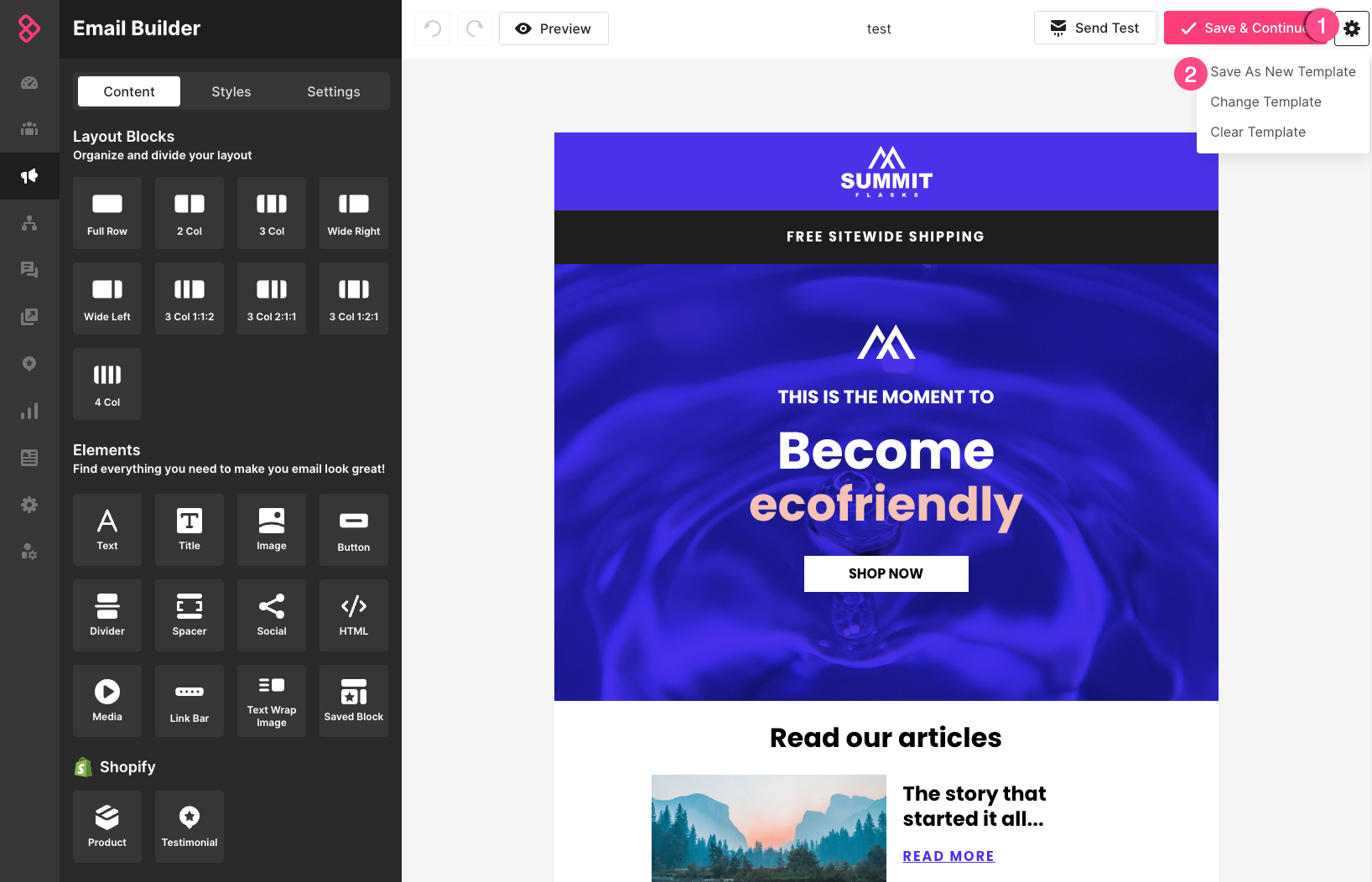
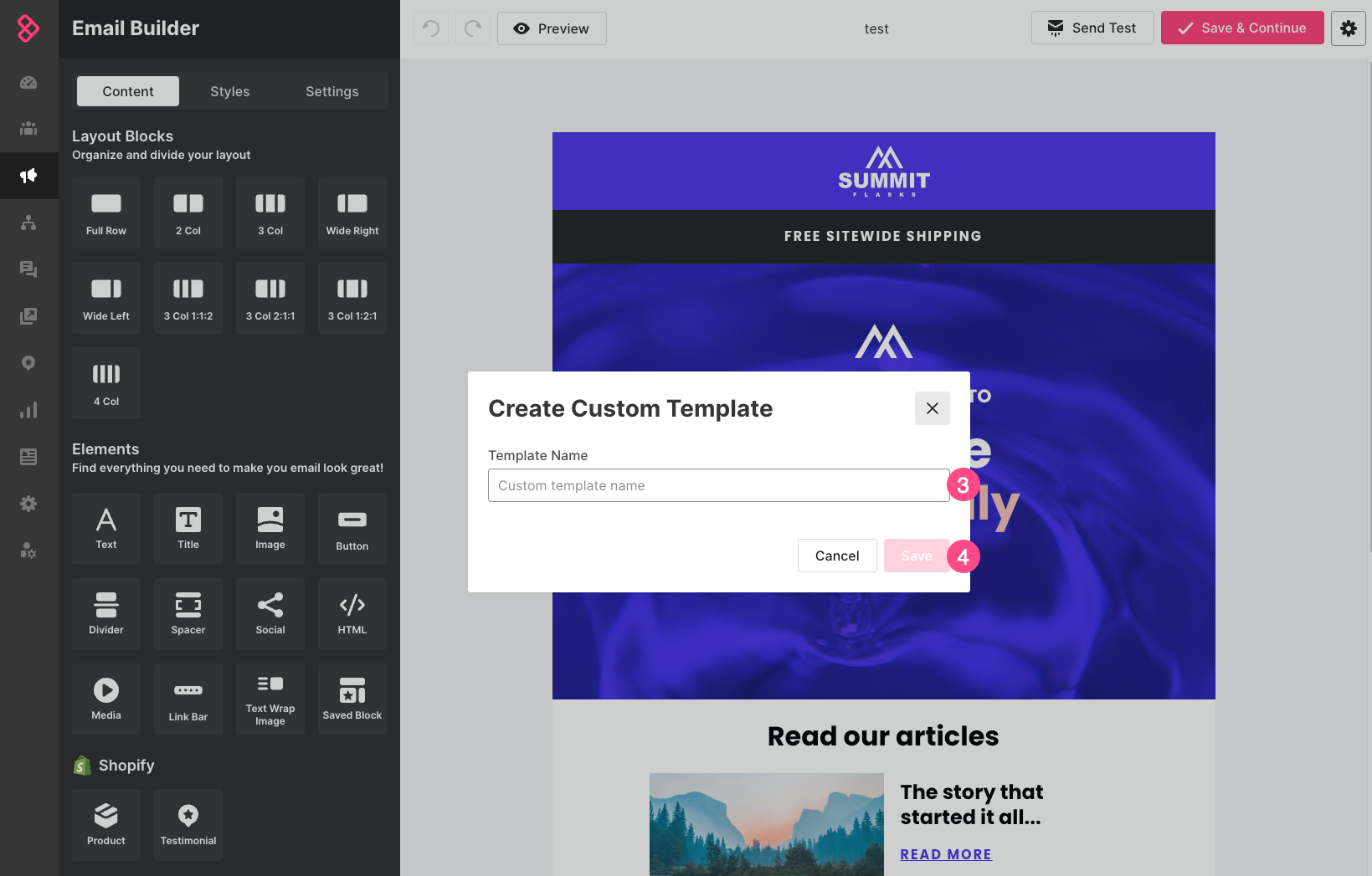
Save an email as a template
Open a campaign or automation email and edit its content. To save an email as a template:
Click the three-dot menu
Click Save as Template
Enter a descriptive name
Click Save
Once you save an email as a template, it will stay in the template center unless you delete it from the email templates page. If you delete the original campaign or automation email node the template was created in, it will still be available in the email templates page.
Manage templates
Click the Content Library icon in the left-hand sidebar
Click Email Templates
Hover over a template to see commands for duplicating, editing, previewing, or deleting a template.
Deleted templates cannot be retrieved, so delete them with caution.
Use a template in the visual email builder
Click the Custom tab of the template picker
Click Use Template
Troubleshooting
I don't see my email template!
If you created your email in Sendlane's legacy email builder, it will not appear on the Email Templates page. Templates created in the legacy email builder can still be accessed via the campaigns page or in automations.
Why is my template not appearing in the search results?
The search bar on the Email Templates page only searches the text in a template's name. Make sure you are searching for terms that appear in a template's name.