How to Request Reviews with Automations
Last updated: March 14, 2025
Overview
Sendlane Automations allow you to automatically request a product review from Contacts who purchase from your store using personalized and branded emails by creating Automations. Read on to learn how to set up a review request Automation!
In This Guide
🚦 Before Getting Started
Style and customize your review submission thank you page
1. Create an Automation
Click the Automation icon
Click New Automation
Click Start from Scratch
Enter a name for the Automation
Click Start
2. Add Triggers
Click +Add Trigger
Click your eCommerce integration’s tab
Select a trigger based on the type of request you want to make
Recommended: To send a request once the customer receives their order, select the Order Placed trigger then select Fulfilled from the Order Status dropdown
To send a request immediately after purchase, select the Product Purchase trigger
Select a Limit Per Contact
No Limit - Contacts will be sent through the Automation every time it is triggered
Do not trigger when already in Automation - Contacts will be sent through the Automation only once until they reach the end
Once Per Day - Contacts will be sent through the Automation the first time it is triggered in a 24 hour period
One Time Only - Contacts will be sent through the Automation only the first time it is triggered
3. Add a Wait Node
Timing is critical when requesting product reviews, and wait nodes are here to help!
If your request arrives too early, customers might forget about it by the time they’ve formed their opinion of your product. If it arrives too late, customers may have lost motivation or momentum.
We recommend using a wait node of at least seven days after the Automation’s trigger.
You may want to adjust this timing based on factors that affect your customers’ shopping, purchasing, and product experience like average processing and/or shipping times.
Keep the following questions in mind when setting up wait nodes.
How quickly do customers receive their product? Buffer your review request timing with enough time for customers to have received their order.
Do customers see results from your product immediately or after extended use? For example, if you sell candy, customers are likely to try a piece soon after delivery and form an opinion immediately. However, if you sell skin care products, customers may try the product immediately but won’t form an opinion until they’ve used the product for a few weeks or even months.
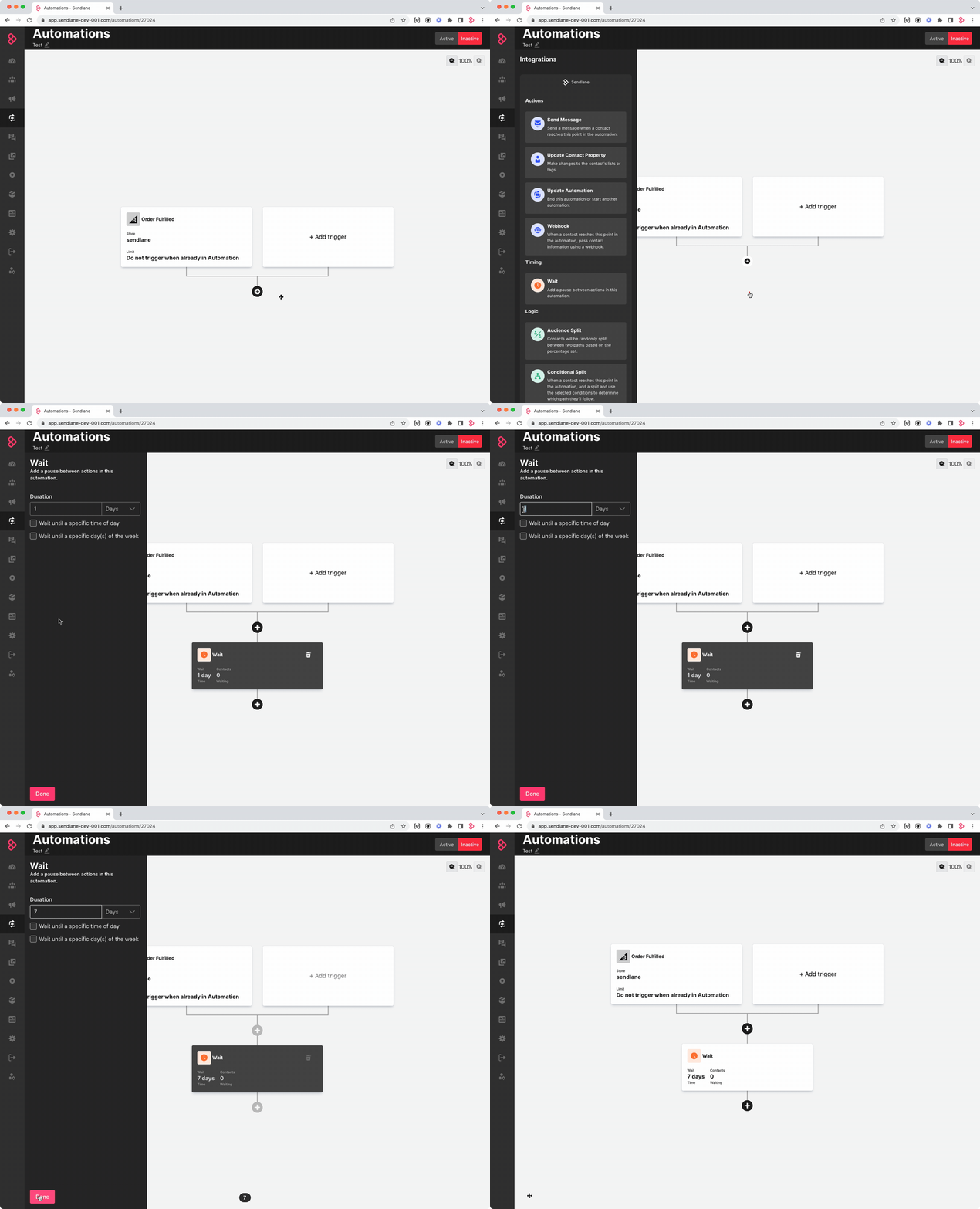
To add a wait node:
Click the + button
Click Wait
Enter the number of days to wait
Click Done
4. Add an Email Node
Add an email node to start designing your product review request!
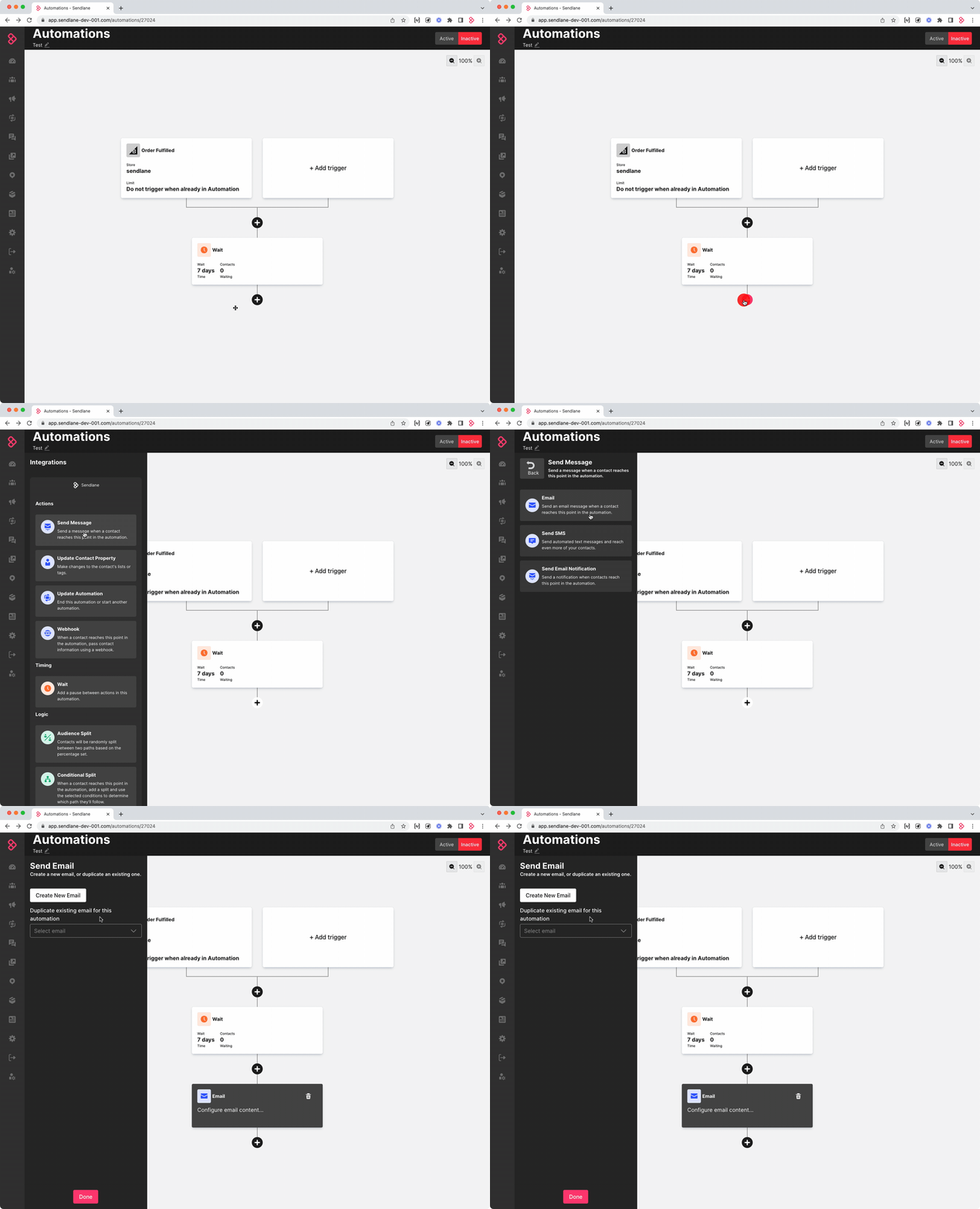
To add an email node:
Click the + button
Click Send Message
Click Email
Learn more about Automation email nodes here.
Add a Review Block
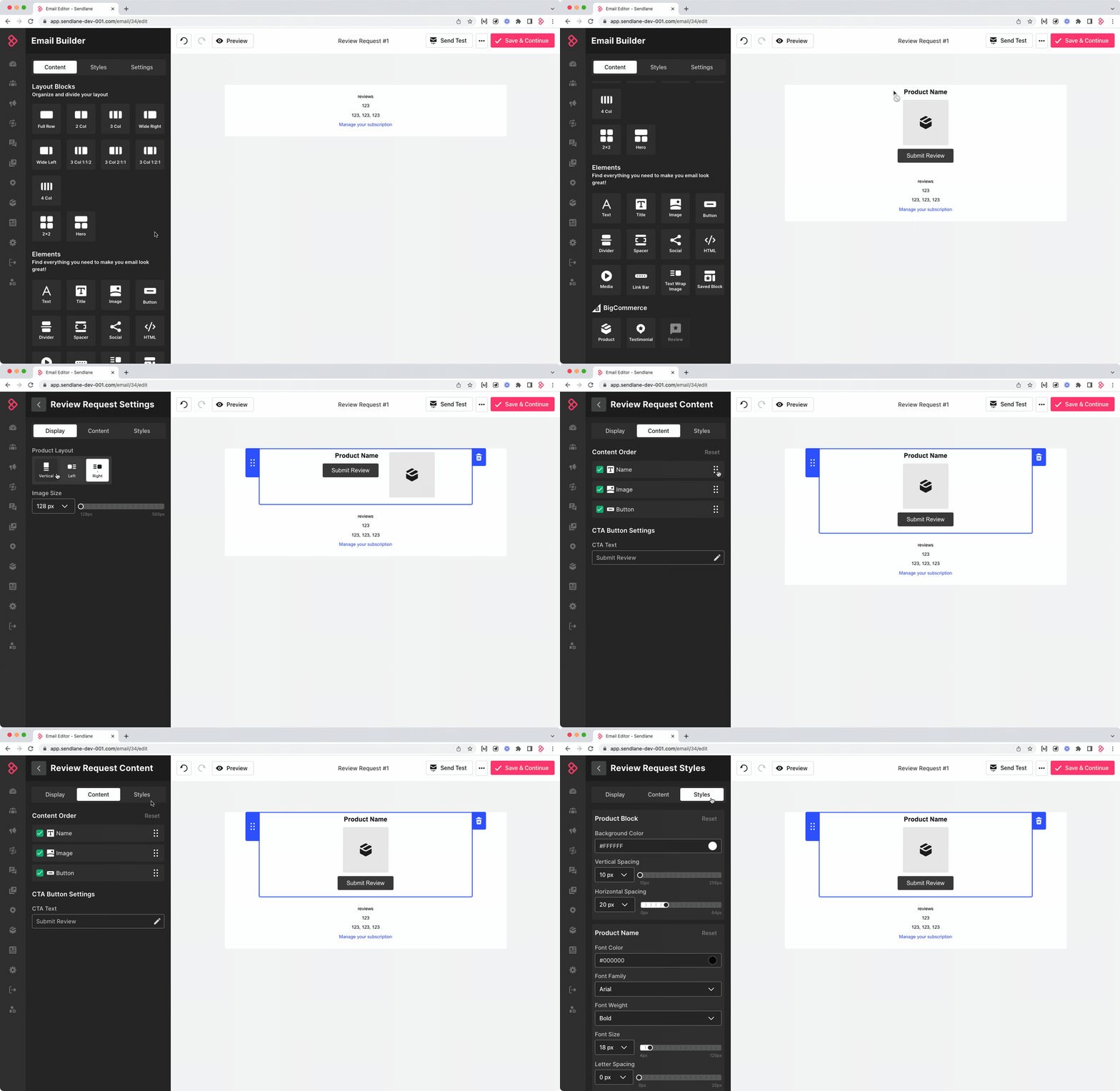
The review block will automatically pull in the highest priced purchased product’s image, description, and direct link to the product’s review form. Use the Display, Content, and Styles tabs to customize the look of the review block:
Display - Change the block's layout orientation and image size
Content - Rearrange the product image, name, and review link button styling and text
Styles - Adjust styling for the block background and spacing, font, and color options
We recommend keeping your review request emails simple with the review request as the only call to action. Here's some sample copy for inspiration:
Subject
What do you think of your purchase from Company Name?
Body
Hello {{ contact.first_name | default('Friend') }}! Thank you so much for shopping at Company Name. We'd love to hear what you think about your new product!
🙋 How do I link to the review submission page without using the review block?
Automations using the Order Placed (not Product Purchased) trigger can link directly to the review submission page by entering trigger.getOrder.review_request_link as the URL for any hyperlinked images or text.
5. Add Additional Nodes for Review Reminders
Some customers will inevitably miss your initial request for product reviews, or perhaps they hadn’t had enough time to use your product when the initial request was sent. Add additional nodes to your review request Automation to serve as reminders.
Add Another Wait Node
Make sure to provide enough time between the initial request and the reminder for customers to become familiar with your product and to not feel rushed.
We recommend at least seven days between the initial request and a reminder.
Add a Conditional Split
Before adding additional reminders, add a Conditional Split to avoid requesting a review that has already been submitted.
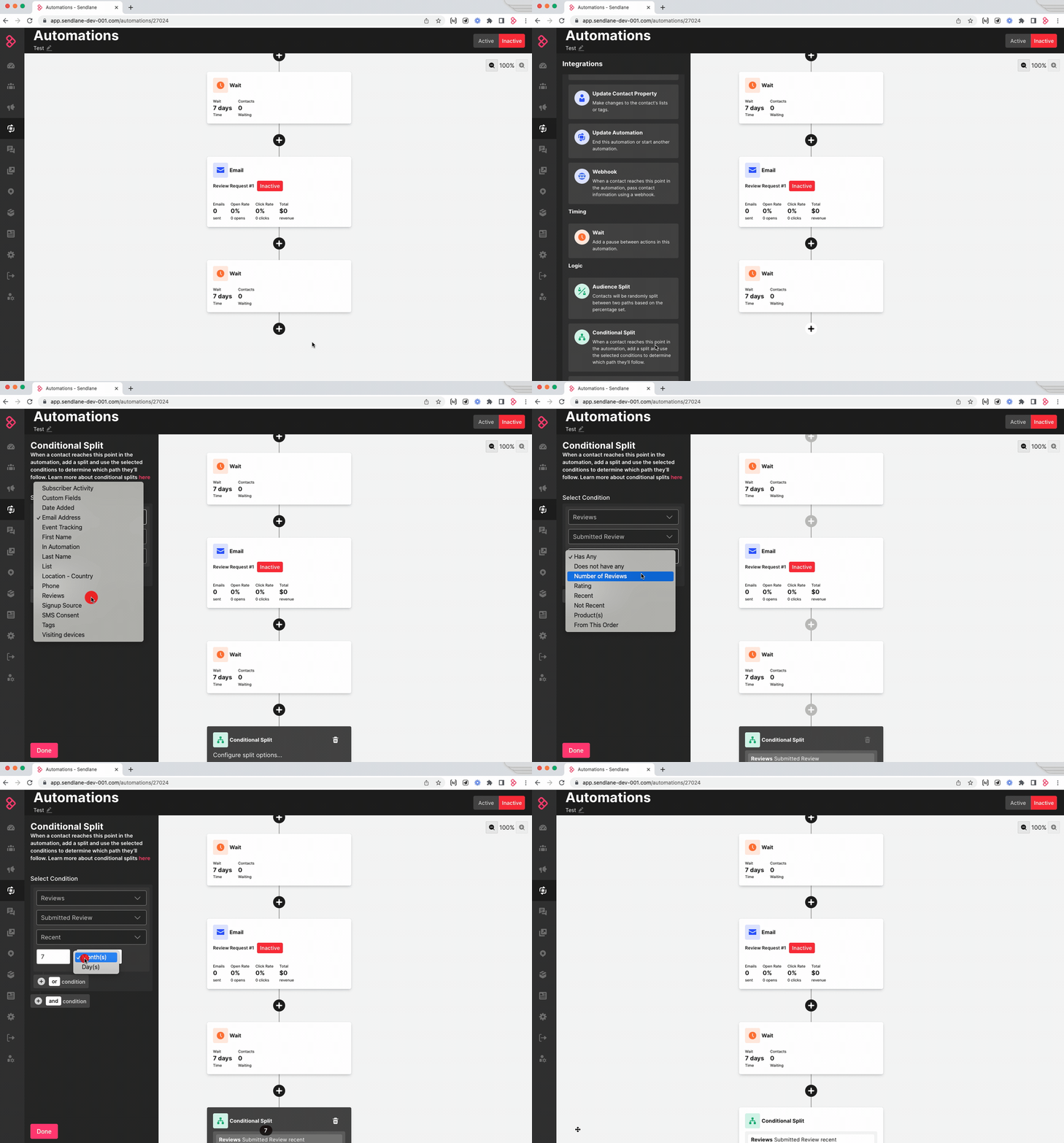
To add a Conditional Split:
Click the + button
Click Conditional Split
Set conditions:
Reviews > Submitted Review > Recent > Set the same length of time as the wait node
Click Done
Add an Email Node
Add an email under the No branch of the Conditional Split to send reminder emails to Contacts who did not submit a review during the wait time:
Click the + button under the No branch of the Conditional Split
Click Send Message
Click Email
Create a new email or duplicate the first email in the Automation
⏭ Next Steps
Now that you've completed the required Automation to request reviews from purchasers, set up an Automation to respond to reviewers with an email, and a final Automation to notify reviewers that you've left a public reply on their review:
Request Reviews with Automations