How to install Beacon general tracking
Last updated: September 29, 2025
Overview
Beacon general tracking allows you to monitor website views and overall engagement. Read on if your eCommerce store uses a custom integration into Sendlane to learn how to install Beacon general tracking.
Before getting started
Make sure you have access to your website's source code to install Beacon
Read Understanding the Beacon tracking pixel for detailed information about how Beacon works
Are you a Shopify or BigCommerce user?
If you use Shopify or BigCommerce, you should not use this guide to install Beacon general tracking.
Non-headless BigCommerce users had Beacon general tracking automatically installed when they integrated their BigCommerce store with Sendlane.
Shopify users should refer to the following guide depending on their store type:
Install general tracking
Click Account
Click Beacon to Head to the Beacon tab of your Account page by clicking the cog icon, then opening the Beacon tab
Click Get Beacon Code
Click Copy code
Paste the script in your website's header
Test general and event tracking installation and functionality
After installing Beacon, you should test your installation and Beacon's functionality.
You can test the installation by visiting your website and finding your Beacon event ID in your browser's console. You can test functionality by setting up an automation that uses Beacon events, like abandoned browse, and testing the automation.
Test Beacon installation
This process assumes you are using Chrome, which is the most compatible browser for Sendlane.
Determine whether Beacon was installed correctly by inspecting your website:
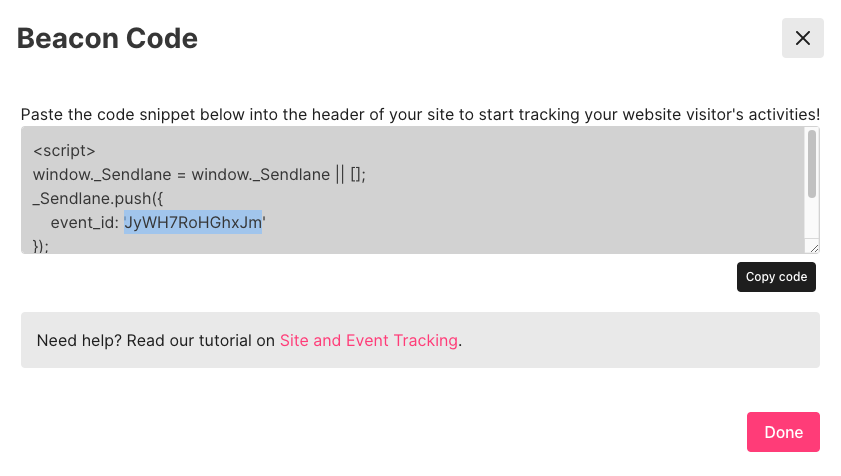
Copy the event ID from your Beacon general tracking code or event tracking code:
Open your website
Right click anywhere on the page
Click Inspect
Click into the Elements tab
Type Command/Control + F to open the finder
Paste the event ID from your Beacon code
If your event ID is highlighted, Beacon is installed correctly.
If your event ID was not found, try installing Beacon again and reach out to your customer success manager or Sendlane support for next steps.
Test Beacon functionality
Use an abandoned browse automation to test your Beacon installation's functionality:
Create an abandoned browse automation (select 5 minutes for the
consider abandoned after setting)On a tracked device, view a product in your store
Wait five minutes
Ensure you receive the email from your abandoned browse automation