How to install Beacon in Native Shopify stores
Last updated: August 5, 2025
Overview
Sendlane’s Beacon tracking pixel allows you to follow your contacts through their entire customer journey, from pages viewed to purchases made. Read on to learn how to install general tracking on your traditional (not headless) Shopify store and start collecting valuable customer journey data.
Before getting started
Make sure you have admin access to your Shopify store
Are you sure you have a Native/non-headless Shopify store?
This guide is only for users with Native/non-headless Shopify stores. If you use a Shopify theme, you have a Native/non-headless Shopify store.
If you have a custom storefront that you or a partner developed for your store and do not use a Shopify theme, you have a Hydrogen/headless Shopify store and should not use this guide to install Beacon. See How to install Beacon in Hydrogen Shopify Stores for instructions on installing Beacon.
Step One: Copy the Beacon general tracking code
Click Account
Click Beacon
Click Get Beacon Code
Click Copy the Event ID from the object
Step Two: Add Beacon general tracking code to Shopify
Log in to Shopify
Click Online Store
Click Customize
Click App Embeds on the left navigation bar
Open the Sendlane Event Tracking App
Paste your event ID
Enable the Sendlane Event Tracking App
Click Save
Step Three: Test Beacon installation
Once you've saved your Beacon code inside the Sendlane Event Tracking App, check that Beacon is firing correctly by inspecting your website. This process assumes you are using Chrome, which is the most compatible browser for Sendlane:
Copy the event ID from your Beacon installation code:
<script>
window._Sendlane = window._Sendlane || [];
</script>
<script src="https://sendlane.com/scripts/pusher.js" async></script>
<script>
_Sendlane.push({
    event_id: 'COPY_THIS_ID'
});
</script>
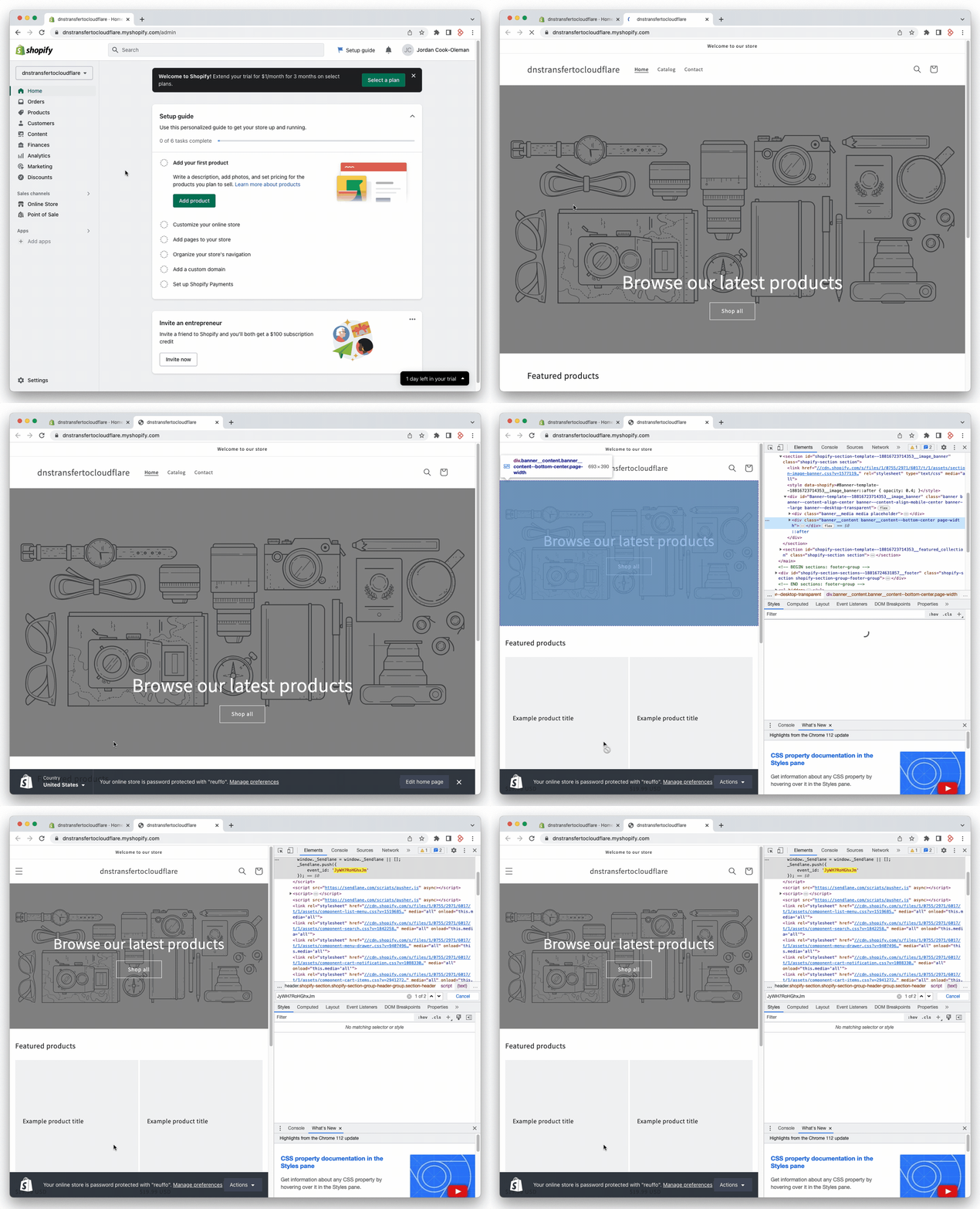
Open your Shopify store
Right click anywhere on the page
Click Inspect
Click into the Elements tab
Type Command/Control + F to open the finder
Paste the event ID from your Beacon code
If your event ID is highlighted, Beacon is installed correctly! If your event ID was not found, try installing Beacon again and reach out to your customer success manager or Sendlane support for next steps.
Beacon is now equipped to track site visits, conversions, and events on your Shopify website and the information will be available inside your Sendlane account, within each contact profile!