How to insert dynamic content feeds into an email
Last updated: March 13, 2025
You can automatically insert content from your website into emails with an RSS or JSON feed.
Read on to learn how to set up campaign and automation emails with dynamic content!
Before getting started
Set up your website's RSS or JSON feed
Have the feed's URL handy
Step One: Turn on feed settings
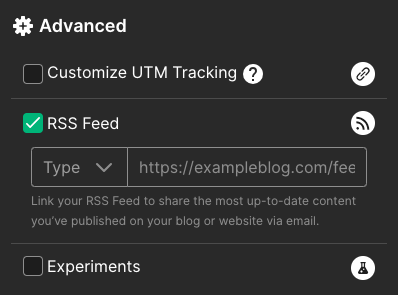
To enable your RSS or JSON feed in a campaign or automation email:
Check the RSS Feed checkbox in your campaign or automation email's advanced settings
Click the dropdown and select your feed's type
Enter your feed's URL
Step Two: Add templating syntax to your email
You can render RSS or JSON feed content in the visual builder with an HTML block, in the text builder by toggling to the email's raw HTML, or in the HTML builder.
You can display the following properties for each post:
Data | RSS syntax | JSON syntax |
Title | {{ RSS.items.0.title }} | {{ JSON.0.title.rendered }} |
Description | {{ RSS.items.0.description }} | {{ JSON.0.description.rendered }} |
Content | {{ RSS.items.0.content }} | {{ JSON.0.content.rendered }} |
Image | {{ RSS.items.0.image }} | {{ JSON.0.image.rendered }} |
Image URL | {{ RSS.items.0.image_url }} | {{ JSON.0.image_url.rendered }} |
Author | {{ RSS.items.0.author }} | {{ JSON.0.author.rendered }} |
Link | {{ RSS.items.0.link }} | {{ JSON.0.link.rendered }} |
Date | {{ RSS.items.0.date }} | {{ JSON.0.date.rendered }} |
Render a single post
You can display your feed's latest single post with the following templates.
The template defaults to rendering the latest post as noted by the 0 in the syntax. To render the second post, change the 0 to 1, and so on.
RSS | JSON |
| |
Render a series of posts
The feed renders 20 posts by default, but this number can be changed by using the slice function described below.
Use the following templates to render a series of posts:
RSS | JSON |
| |