How to install a form on Shopify
Last updated: August 5, 2025
Overview
Sendlane Forms can be installed in your Shopify store with the form’s lightweight script.
Read on to learn how to find a form’s installation code and guidance on where to install forms on your Shopify store.
Ensure Beacon is installed
Forms requires Beacon to be installed on your website before any site tracking data can be collected for your forms.
Ensure Beacon is installed before proceeding with form installation.
Access the form installation code
To access a form’s installation code and copy the script to your clipboard from the form page:
Click the Forms icon
In the Actions column, click the eye icon
Copy the Form Key
Install a pop up style form on your Shopify store using the Sendlane Forms Section
The form’s installation code is the only code required to make your form appear on your website.
See How to manage Sendlane Forms’ activation status for information on form publication/activation statuses.
All forms require their own unique installation codes to be added to your website.
To install a pop up style form in your Shopify store:
Ensure Beacon is installed in your Shopify store before continuing (see steps to test Beacon installation here)
Copy your Form Key from the Summary page of the form builder
Log in to Shopify
Click Online Store
Click Customize
Click Sections on the left navigation
Click Add Section
Click on the App Tab
Click Sendlane forms
Paste your Form Key into the right slide
Click Save
Install an inline style form on Shopify
You can paste an inline form’s installation code anywhere you’d like it to appear in your Shopify store’s source code, create a page to embed your form on, or use a custom.liquid block to place the form in your store’s theme using the visual theme editor.
The form’s installation code is the only code required to make your form appear on your website.
See How to manage Sendlane Forms’ activation status for information on form publication/activation statuses.
All forms require their own unique installation codes to be added to your website.
Install an inline form on a dedicated page in your Shopify store
You can create a dedicated page for your form in your Shopify store, for example, to display information about your newsletter or VIP program along with a sign up form.
To create a dedicated page for a Sendlane form:
Copy your form's installation code from the Summary page of the form builder
Log in to Shopify
Click Online Store
Click Pages
Click Add Page
Enter a title for your page
Click the HTML > icon
Paste your form's installation code
Add other content to your page
Click Save
Install an inline form in your Shopify store using a Custom Liquid block
You can install an inline form anywhere you'd like on your Shopify theme by using the visual theme editor and a Custom Liquid block. If your Shopify theme doesn't natively support custom.liquid blocks, check out How to Create a Custom Liquid Block Option For Your Shopify Theme.
To install an inline Sendlane form on your Shopify theme:
Copy your form's installation code from the Summary page of the form builder
Log in to Shopify
Click Online Store
Click Customize
Hover over the area of your theme where you'd like your form to appear
Click Add Section
Select Custom Liquid from the list of sections
Click into the Custom Liquid block you just added
Paste your form's installation code in the Liquid code text box
Click Save
Troubleshooting
My inline form appears sporadically or not at all on my Shopify storefront!
If you cannot see your installed inline form, you do not have Beacon general tracking installed, or another script on your storefront could be competing with Sendlane's pusher.js script, which powers Beacon and Sendlane forms.
If you installed Beacon before May 2024, you may also have multiple instances of the pusher.js script installed on your website, which can cause issues such as inline forms not appearing.
First, check to ensure your store only has one instance of the pusher.js script:
Open a Chrome window
Copy
pusher.jsto your clipboardVisit your store
Right click anywhere on the page
Click Inspect
Press CMD + F on macOS or CTRL + F on Windows
Paste
pusher.jsinto the search boxIf you find more than one instance of the
pusher.jsscript () remove all but one
Next, if you still can't see your form and are sure your store only has one pusher.js script installed, you can try moving the pusher.js script source line of Beacon to the bottom of the page:
Login to Shopify
Click Online Store
Click Themes
Click the three dot menu
Click Edit Code
Search for
header.liquidClick into the file and locate your Beacon script, which should be at the very top of your file
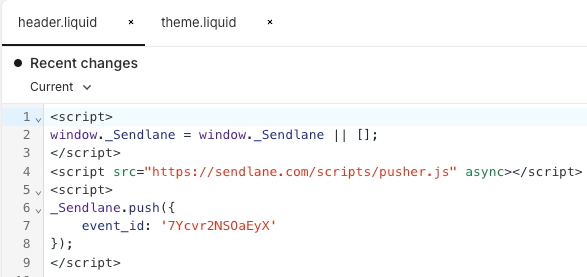
Highlight the script source line, which is line 4 in the example below
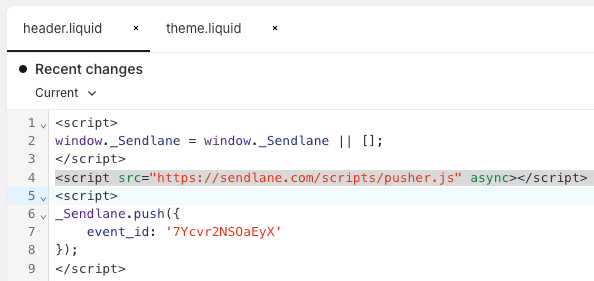
Press CMD + X on macOS or CTRL + X on Windows to cut the script source line
Search for your theme.liquid file
Click into the
theme.liquidfilePress CMD + F on macOS or CTRL + F on Windows to open the search pane
Search for
Paste the line you cut in step 9 just before the tag
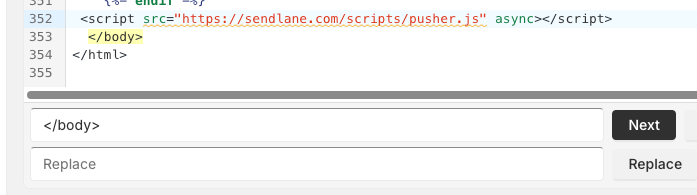
If you've followed both troubleshooting efforts described above and are still experiencing issues with your inline form, please contact Sendlane's 24/7 product support or your customer success manager.
I don't see my pop-up style form on my Shopify storefront!
There are a few common issues that can cause your Pop-Up to not appear:
Other form snippets. If you've installed other forms in your Shopify store in the past, make sure all snippets are removed. Competing installation codes may be causing your Sendlane form to not appear.
Your form is set to Draft. Make sure your form is set to Live and any pending changes have been published
Your form was installed in a different store. To confirm that your form is installed in the intended store:
Copy the form key from the installation code on the summary page
Navigate to the public view of your store
Right click anywhere on the page
Click Inspect
Paste the form key in the search bar
If the form key appears, the form has been installed on the correct site. Proceed with other troubleshooting measures. If the form key does NOT appear, follow the instructions above to install your form in the correct store.
If you still don't see your form, reach out to Sendlane support or your customer success manager.