How to use your browser's developer console for troubleshooting
Last updated: March 14, 2025
Overview
Modern browsers include a console that can display valuable technical information when something isn't working as expected.
When you contact Sendlane support, you may be asked to share your browser's console information to help troubleshoot.
Read on to learn how to access and share your browser's console information.
Access your browser console
Sendlane supports most modern internet browsers, though we highly recommend Chrome. See instructions for accessing other browsers' consoles in the list below, or read on to learn how to access Chrome's console.
Share browser console information
Sendlane's support team may ask you for a screenshot of your browser console to help troubleshoot your issue. To take a screenshot of your browser console information:
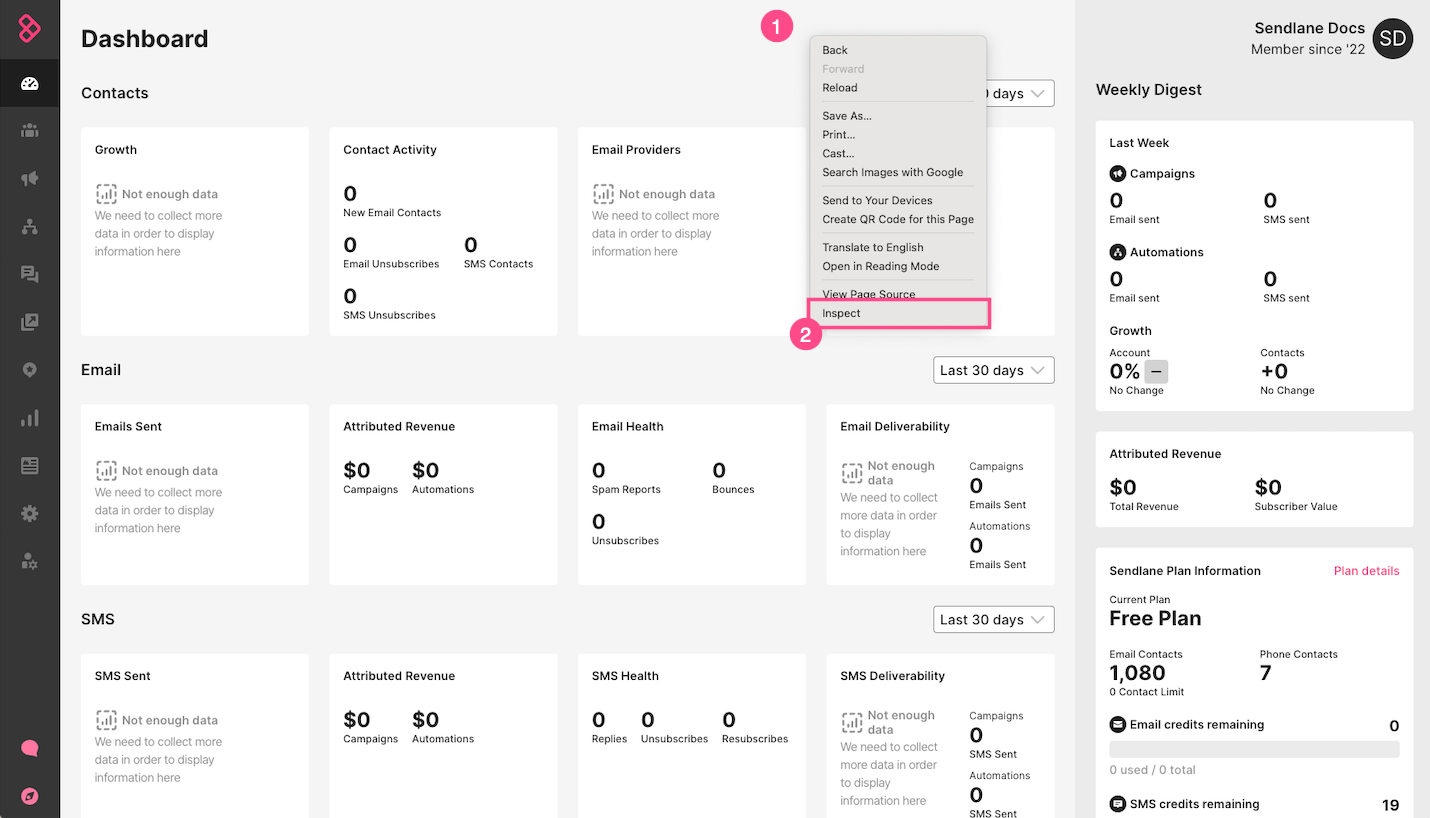
Right click anywhere on the page
Click Inspect
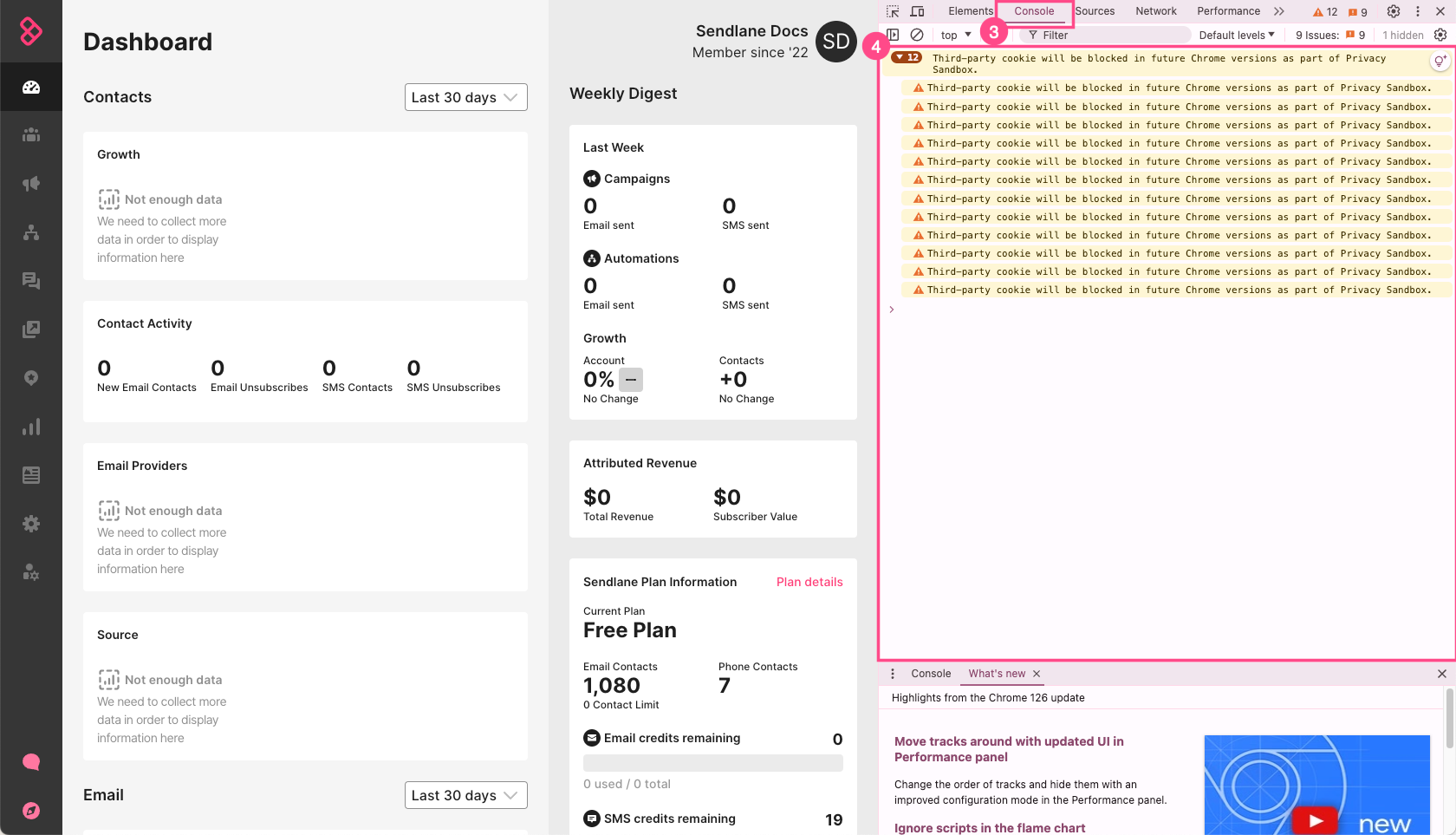
Click the Console tab if it is not already selected
Take a screenshot of the Console portion of the screen