How to create and manage sender profiles
Last updated: January 7, 2026
Overview
Sender Profiles contain the business, sender name, from email address, reply-to email address, and physical address. This information is displayed in every email you send with Sendlane.
Create multiple Sender Profiles to best align with your email marketing and segmentation strategy!
Before Getting Started
Register a custom domain for your business
Create a custom domain email address using your business' domain
Free email accounts cannot be used in sender profiles
Sendlane is compliant with all current data processing and privacy regulations which require all marketing emails to be sent from a business' custom domain email address. Private email addresses cannot be used for Reply To verification.
Sender profile page
The sender profile page displays the following information about each of your sending domains:
ID - The identifier of your sender profile; this may be useful when troubleshooting with Sendlane support
Name - The name you entered for your sender profile
Status - The status of the domain associated with your sending domain:
Authenticated - Your sender profile is using a verified sending domain
Unverified - You selected an unverified domain when creating the sender profile
Lost Authentication - The verified domain you selected when creating the sender profile has lost its verification; follow the steps in the troubleshooting section of 📄 How to verify a sending domainto re-verify your sending domain.
From - The from email address you entered when creating your sender profile
Reply To - The reply-to email address you entered when creating your sender profile; a green highlight means your reply-to email address has been successfully verified, a yellow highlight means your reply-to email address has not been successfully verified
Create an authenticated sender profile
To create an authenticated sender profile:
Click the Audience icon
Click Sender Profile
Click + Sender Profile
Fill out each field, making sure to use a custom domain email address in the From Email and Reply to fields, and your business’ address in the Address section
Sender Name – Enter the name that will show as the Sender when Contacts receive your content. Use a name that your audience will recognize to build brand recognition and trust!
Company name – Enter the company name that will appear in your email footer.
Domain - Select the Verified radio button
From Email
Enter an email address prefix (hello in hello@example.com)
From the dropdown, select a verified sending domain
Reply To Email – Enter the prefix (for example,
helloinhello@sendlane.com) in the field next to your domain. Reply-to email addresses must be functional and able to receive email, they must be entered in all lowercase, and they must use your business' primary domain. Reply-to emails cannot contain a subdomain (for example, hello@sendlane.com will be accepted but hello@mail.sendlane.com will not).Click Send Code to send a verification code to the reply-to email address you entered
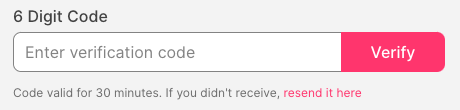
Check the reply-to email address' inbox for the verification code and enter the code in the 6 Digit Code field (if you don't receive the code, check your spam and junk folders or click
resend it hereto resend). If you exit out of the sender profile builder before entering your verification code, open your sender profile and click Edit to enter your code.Click Verify
Address – The CAN-SPAM Act requires a valid physical postal address or P.O. Box to be displayed in all marketing emails.
Click Save
Reply-to email addresses using Google Domains cannot contain periods
If you manage your business' email with Google Domains and your reply-to email address contains a period, omit the period when requesting your verification code.
For example, if your reply-to email address is hello.there@company.com, enter hellothere@company.com.
Manage sender profiles
Edit a sender profile
Click the Audience icon
Click the Sender Profile tab
Click the gray arrow next to the Sender Profile you want to edit
Click the Edit icon
Make changes to your Sender Profile
Click Save
Change a list's sender profile
Click the Audience icon
Click the Lists tab
Click the gray arrow next to the List you want to change the Sender Profile for
In the Sender Profile section, click Edit
Select a new Sender Profile from the dropdown
Click Save
Delete a sender profile
Click the Audience icon
Click the Sender Profile tab
Click the gray arrow next to the Sender Profile you want to delete
Click Delete
Click Delete Sender Profile
Create a sender profile for a new list
When you create a new list, you'll have the option to select an existing sender profile to associate with the list or to create a new sender profile that will be associated with the list.
To create a sender profile for a new list:
Click the Audience icon
Click the Lists tab
Click + List
Click Manage Sender Profile
Fill out the fields in the New Sender Profile window (see step 5 in Create an Authenticated Sender Profile above for information on each field)
Click Add Sender
Click the Account icon
Click Sending Domains
Click the link icon next to your authenticated domain
Under Sender Type, select Existing
Select the sender profile you just created to associate the Sender Profile with your authenticated sending domain
Click Confirm
Troubleshooting
Why isn't my 'From Email' being accepted?
Ensure you are using a valid custom domain email address and that there are no typos or spaces in the email address field.
Why was my email sent using the wrong sender profile?
Review the campaign or automation email's assigned sender profile. If the correct sender profile is selected, please reach out to our support team.
Why didn't I receive the reply-to email address verification code?
Ensure you did not include a period, space, uppercase letter, or any other characters in the reply-to field.
Check your spam and junk folders for the verification email, or send the verification code again by clicking resend it here in the Sender Profile window.
Why does my sender profile say Unauthenticated even though I previously authenticated it?
If the verified sending domain associated with your sender profile loses verification, your sender profile will be marked as unauthenticated. Follow the steps in the troubleshooting section of 📄 How to verify a sending domain to re-verify your sending domain.