How to respond to SMS messages in Gorgias
Last updated: March 11, 2025
Overview
SMS replies from your contacts that you've routed to Gorgias appear in Gorgias, and you should respond to your contacts there.
Read on to learn how to respond to your contacts on Gorgias.
Before getting started
Integrate your Sendlane and Gorgias accounts
SMS replies routed to Gorgias will appear like an email in your Gorgias inbox:
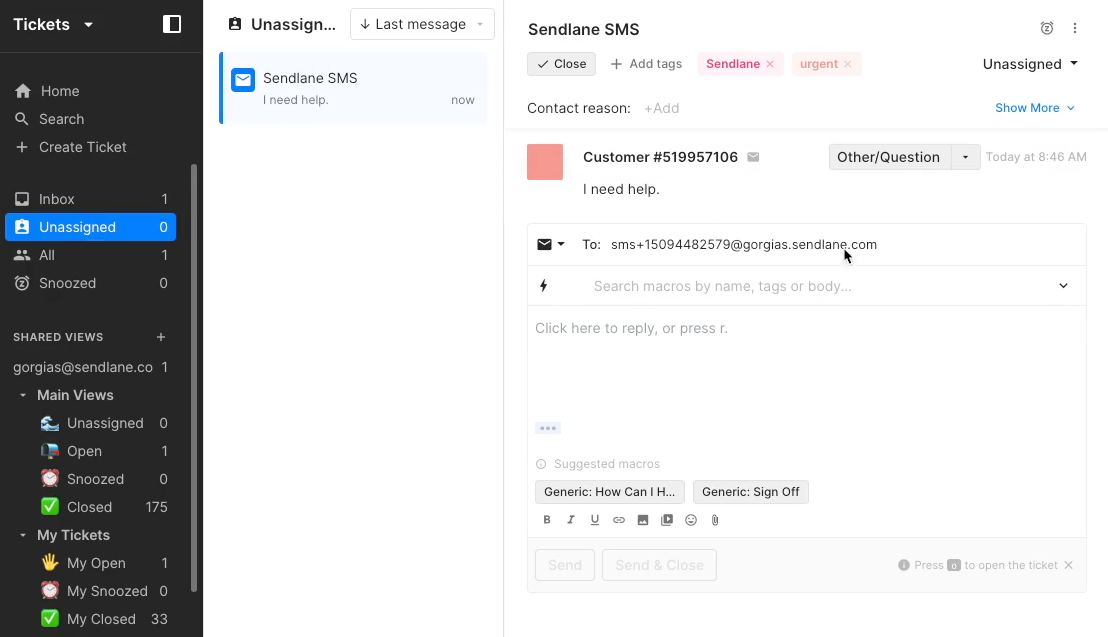
To respond to your customer, type your response in the message field and click Send as usual.
Even though it looks like an email, you're sending an SMS, which means using emojis will increase the number of credits used to send your reply.
Images and files are not supported in the Gorgias integration. Images sent by your customer will not show up in Gorgias or the Sendlane reply center, and there will be no indication in either that the customer attempted to send an image. To send an image to your customer via Gorgias, upload the image to a photo hosting service that provides a URL for the image.
Don't use hyperlinks when replying to Gorgias tickets; they appear in brackets to contacts which unnecessarily uses up credits. This hyperlink would appear in Gorgias, and to the contact, as This hyperlink [https://help.sendlane.com/]