How to Set Up an SEO Full Page of Reviews
Last updated: March 14, 2025
Overview
The full page reviews widget collects all reviews for all products onto one page. This page is great for SEO and helps new customers find your products! Read on to learn how to style and install your reviews page.
Step One: Style Your Reviews Page
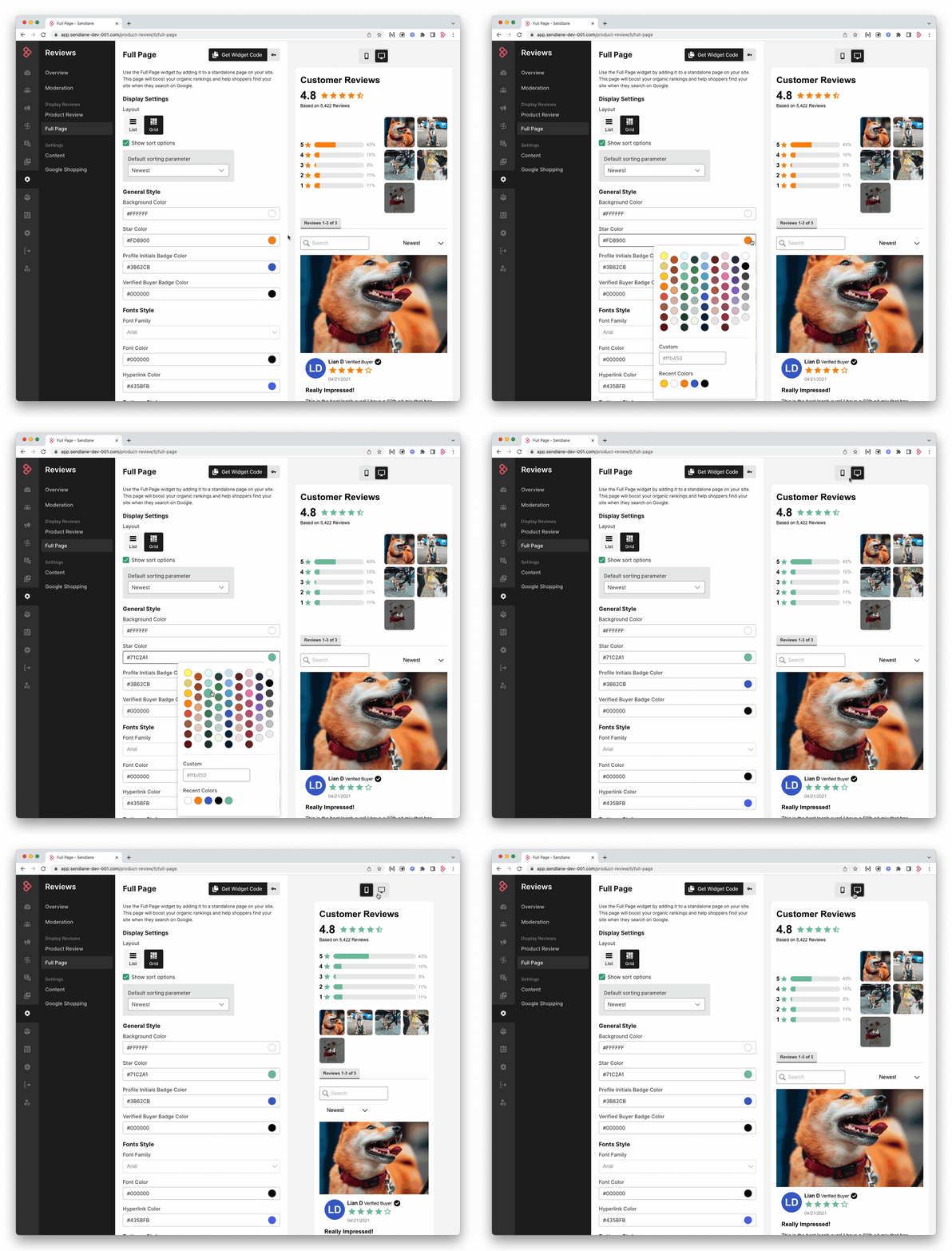
Adjust the styling for your full page of reviews and check desktop and mobile previews:
Display Settings
Layout - Select List to display reviews in a single column list, or Grid to display reviews in a multi-column staggered grid.
Check the Show sort options checkbox to allow page visitors to change the review sort parameter
Newest - Sorts reviews from most to least recently created
With photos - Shows reviews with photos first
Highest rating - Sorts reviews from highest to lowest rating
Lowest rating - Sorts reviews from lowest to highest rating
General Style
Background Color - Set the color of the page’s background
Star Color - Set the color of the stars attached to each review, the average product rating, and the star distribution graph
Profile Initials Badge Color - Set the color of the reviewer initials icon
Verified Buyer Badge Color - Make verified reviews stand out with a pop of color that contrasts with the rest of the widget’s styling
Fonts Style
Font Family - Set the font family for all text on the page (custom fonts are not supported)
Font Color - Set the font color for all text in the reviews widget
Hyperlink Color - Set the text color for hyperlinks
Buttons Style
Button Color - Set the color of the “Write a review” button
Font Color - Set the font color for text in the “Write a review” button
Font Weight - Set the font weight for the text of all reviews
Corner radius - Set the button’s corner style
Border checkbox - Check to add a border to the button
Border thickness - Adjust the thickness of the border
Card Styles
Shadow - Select a light, medium, or dark border around each review card. For no shadow, leave Shadow as None.
Corner radius - Set the card’s corner style
🚨 Saved changes are live immediately
Use each tab of the preview pane to finalize your choices before clicking Save Changes
Step Two: Install Your Reviews Page
Copy the Installation Code
Log into Sendlane
Click the Reviews icon
Click Full Page
Click Get Widget Code
Click Copy Code
Install a Reviews Page on Shopify
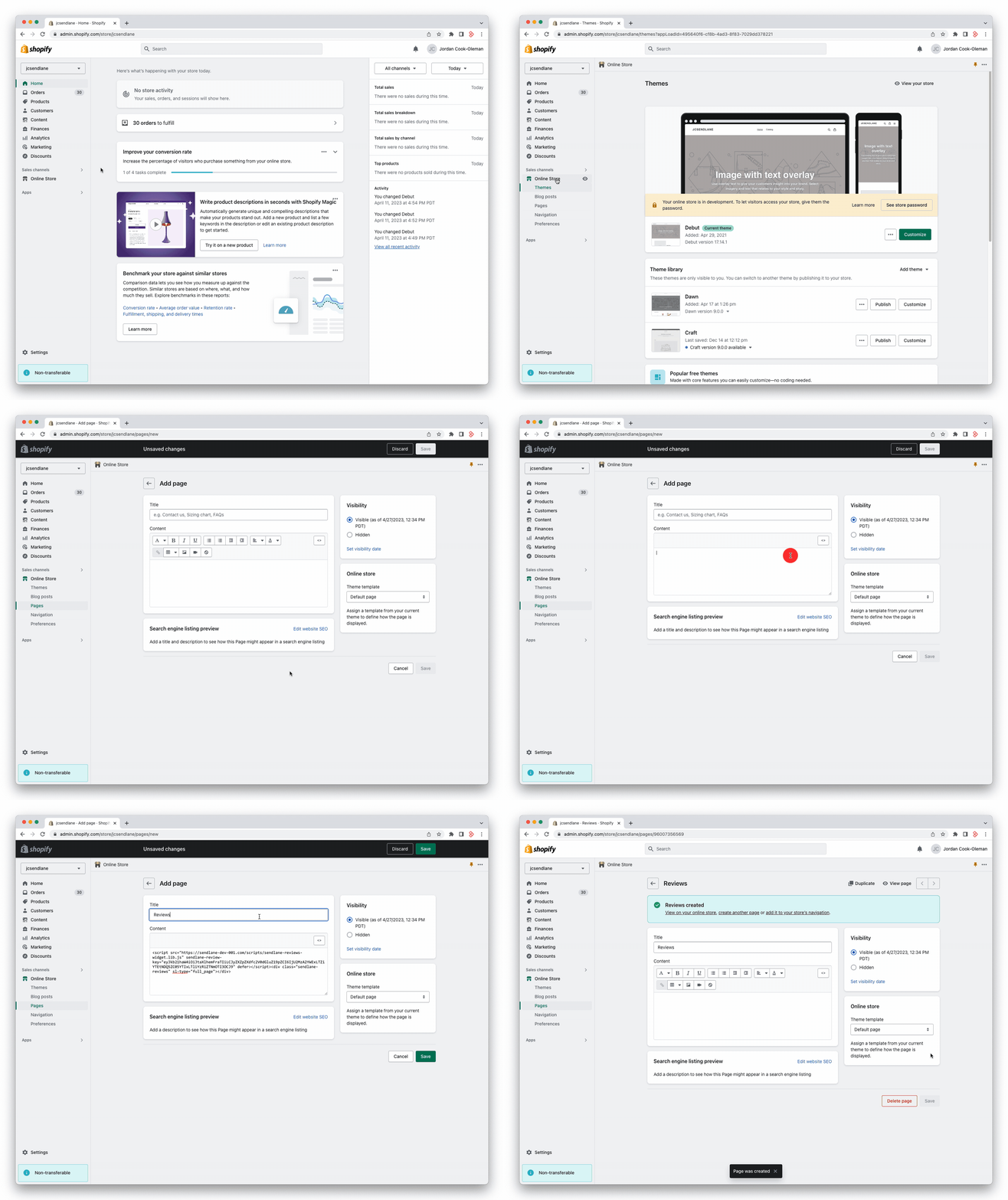
Log in to Shopify
Click Online Store
Click Pages
Click Add Page
Enter a Title for the page
Click the HTML icon (>)
Paste the script
Click Save
Install a Reviews Page on BigCommerce
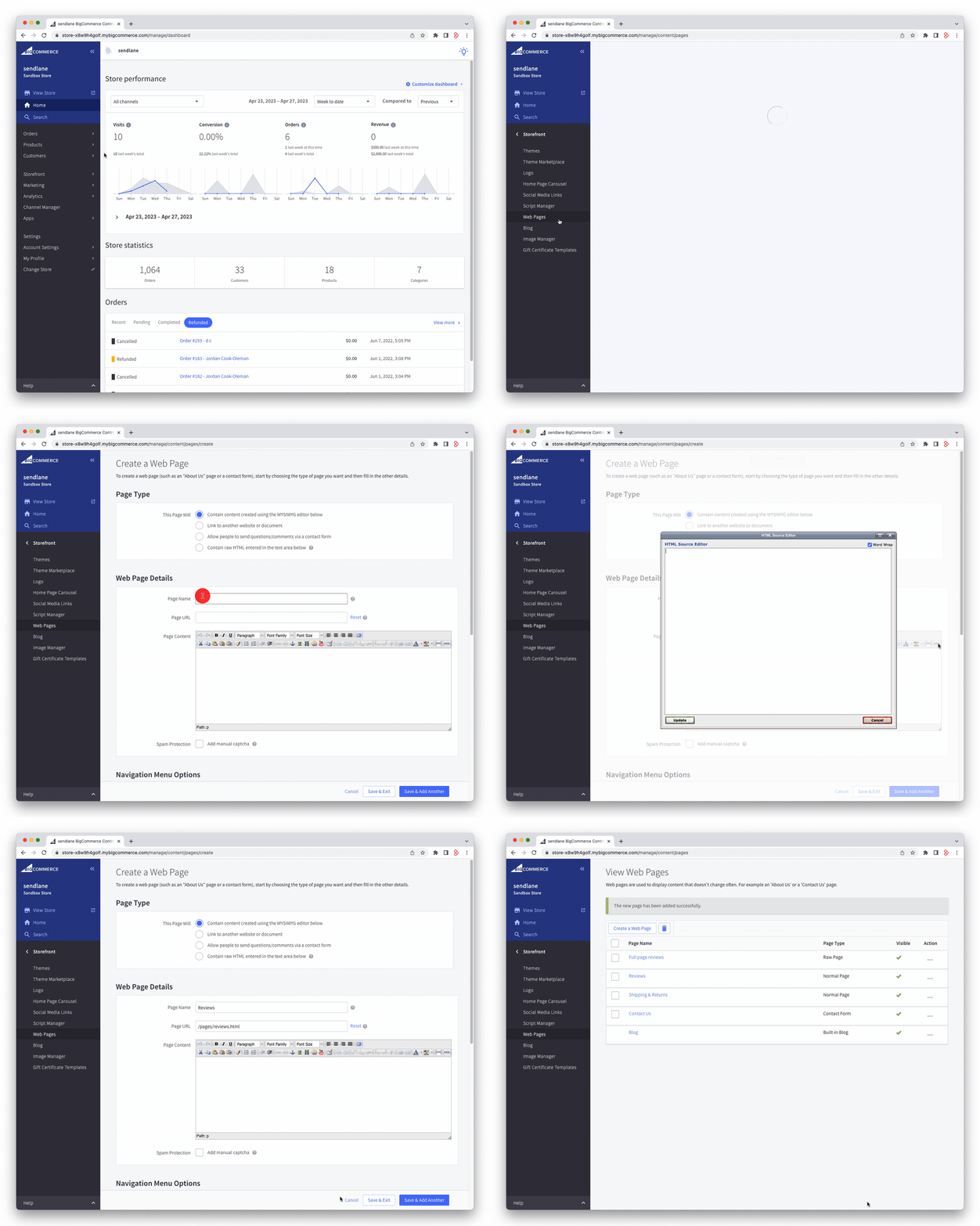
Log in to BigCommerce
Click Storefront
Click Web Pages
Click Create a Web Page
Select “Contain content created using WYSIWYG” if not selected by default
Enter a Page Name
Click the HTML icon
Paste code
Click Update
Click Save & Exit