How to use the report center
Last updated: April 14, 2025
Overview
The report center allows you to run and download aggregate reports on your email, SMS, revenue, subscriber growth, and forms performance.
Check out Understanding reporting center data and options for detailed information about what is included in each report.
Report center data is not real time
Report center reports rely on a cached copy of the Sendlane database to generate reports quickly, typically in under a minute or so.
Cached versions of reports ensure that reports can be generated and downloaded quickly but might result in an older snapshot of your data.
The information in your report may be between one and four hours behind real time.
Reports cannot be scheduled
Generate a report
To generate a report in the reporting center:
Click the report center icon
In the card for the report you’d like to generate, click Generate
In the slideout window, select a date range
Click Generate
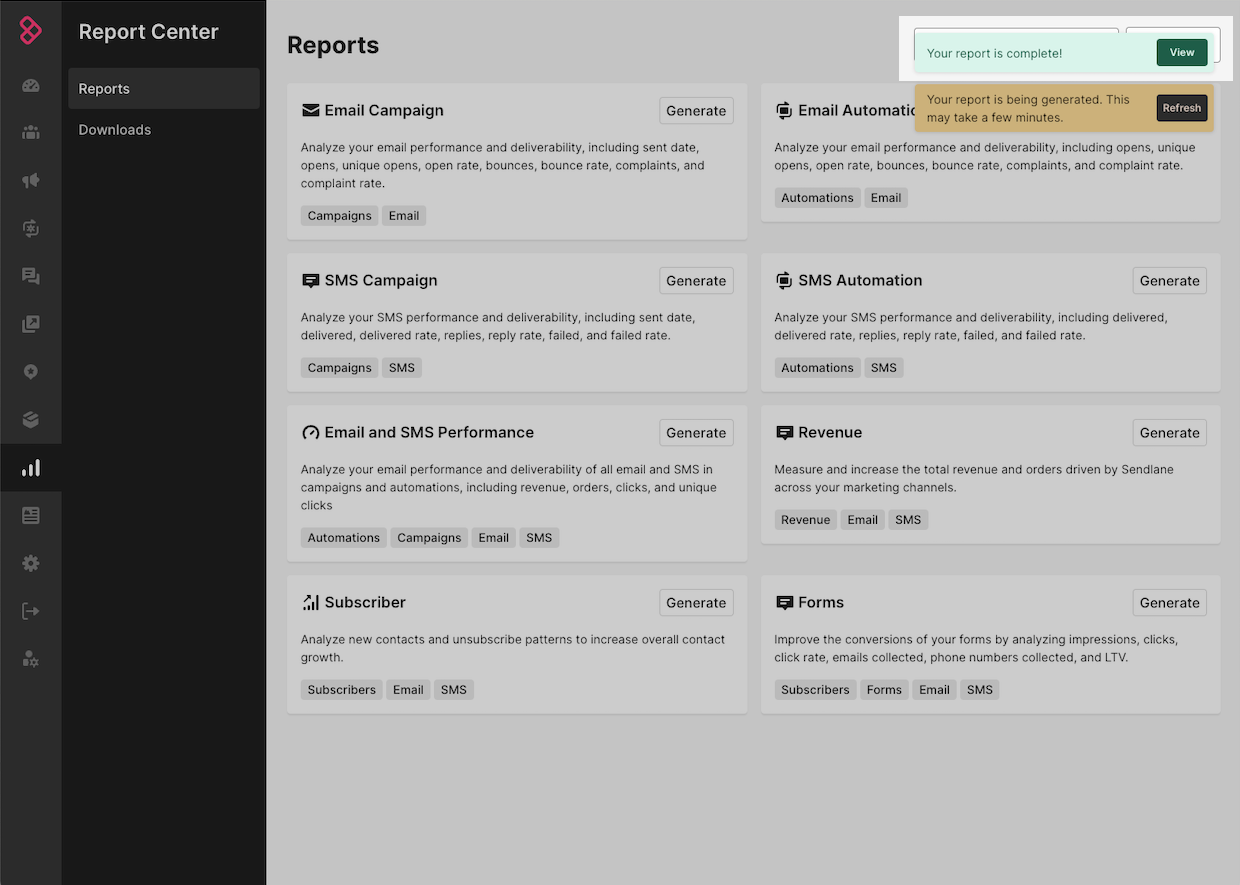
You’ll see a popup notification when your report has finished generating:
Download a report
To download a report:
Click the report center icon
Click Downloads
Click the download icon next to the report you’d like to download
Analyze a report
Use spreadsheet software like Excel or Google Sheets to open and analyze your report CSV file.
Troubleshooting
My report isn't generating!
Report generation time can vary depending on the size of your report. If your report hasn't generated after one hour, please contact Sendlane support or your customer success manager