How to Showcase Reviews on Shopify
Last updated: March 17, 2025
Overview
Sendlane Reviews allows you to create a hand curated carousel or other testimonial layout for your Shopify store. Read on to learn how to highlight reviews in your Shopify store with layouts that perfectly match your store's branding!
Step One: Save Content From Reviews
Use the Reviews Moderation page to search for review copy and images to promote on your hand curated layout. To find high quality reviews:
Click the Reviews icon
Click Moderation
Click the filter icon
Select With Images
Select 5 stars
Select a review with images and copy that best represents your brand
Click on the image preview
Right click on the image to save it to your desktop
Copy your selected reviews' text and the name of the reviewer to a document for easy reference and have that document plus your saved images handy before moving on to create your layout.
If you want to match the color of the stars in your reviews widget on your displayed reviews, navigate to the main widget styling page and copy the hex code of the star color:

Step Two: Determine a Layout For Your Displayed Reviews
Because we're using Shopify's existing theme blocks instead of a Sendlane-created carousel widget, you have multiple options for the layout of your carousel or other reviews display.
Click on the images in the table below to view examples of each layout type, then click on the layout type to see instructions on creating the layout in your Shopify store:
Layout | Preview |
Slideshow |  |
Image With Text | 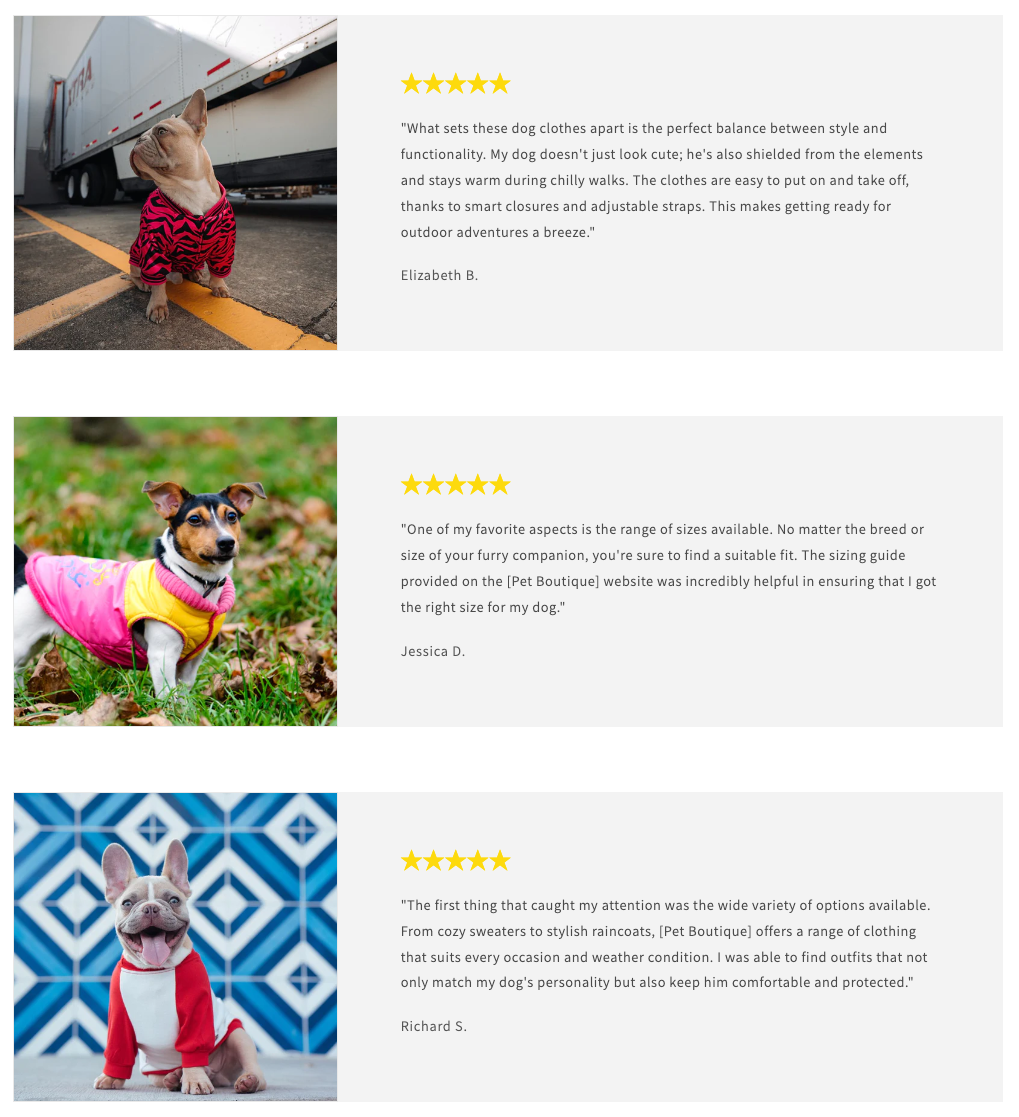 |
Multicolumn | 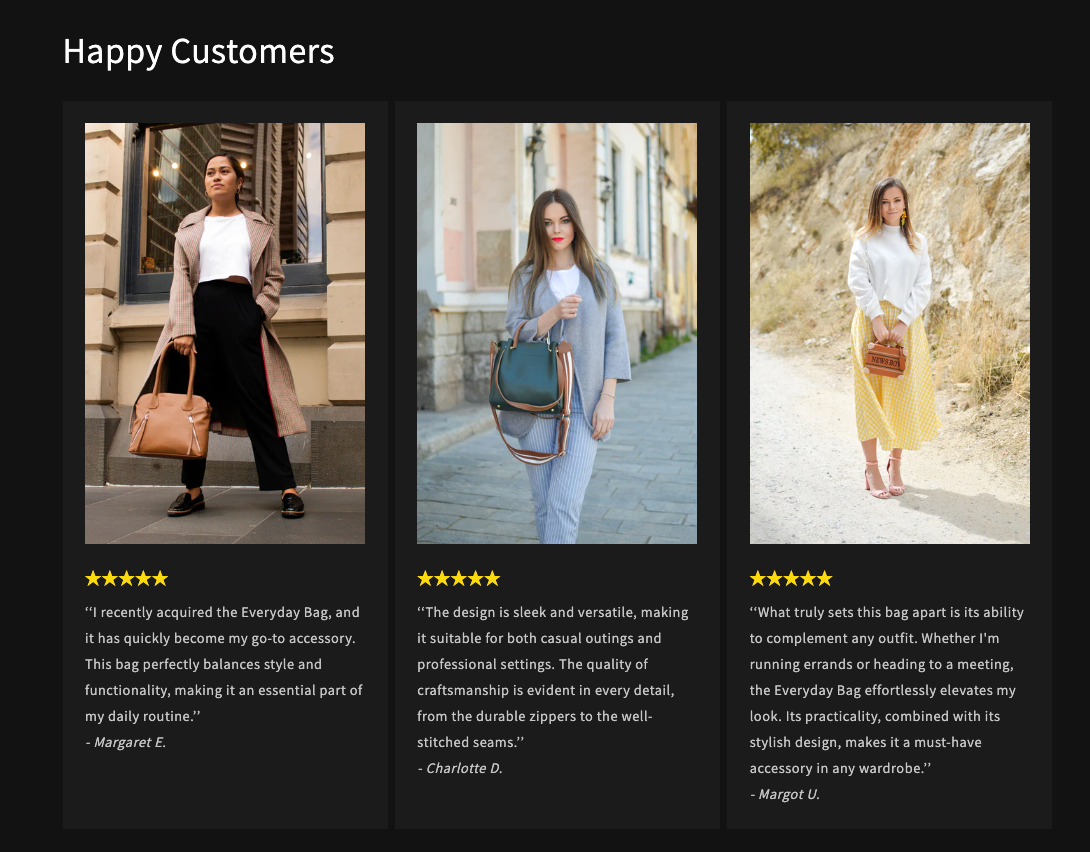 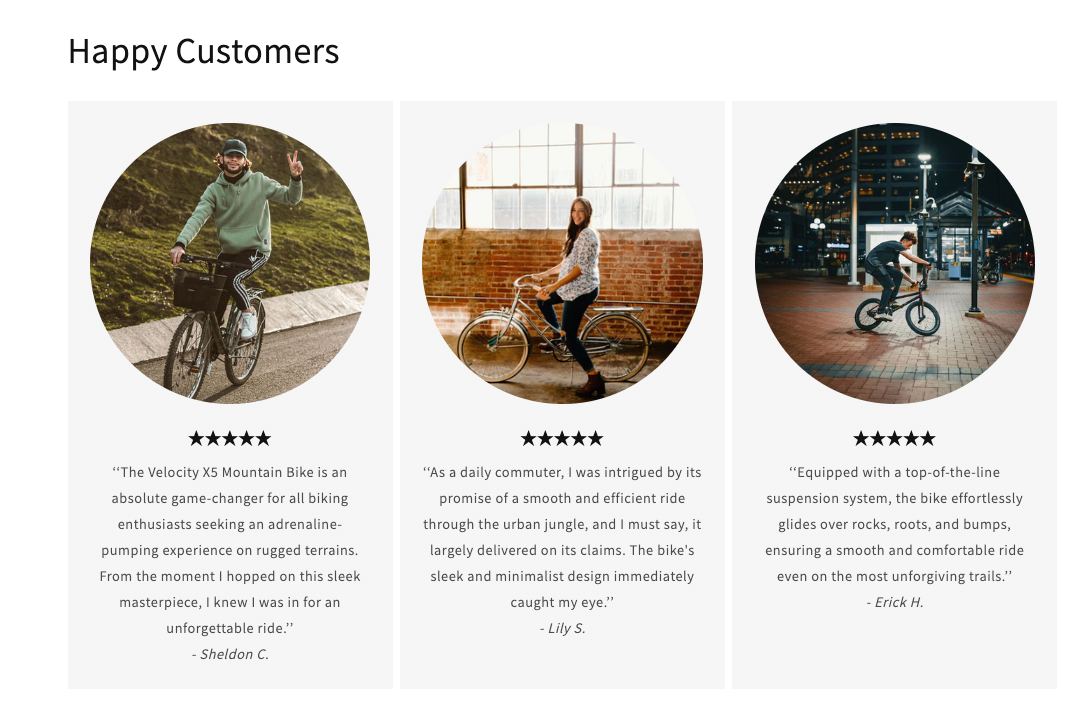 |
Step Three: Create Your Layout
Create a Slideshow Block
Shopify's slideshow block is a great way to create a traditional carousel that can be set to auto-scroll or click to rotate the slides. Read about Shopify's slideshow block for detailed information about the available customization options!
To create a slideshow block like the one shown in the preview above:
Click Sales Channels
Click Online Store
Next to your active theme's name, click Customize
On the theme preview page, hover between section where you want to place your carousel and click Add Section
Click Slideshow
Click on the slideshow block to edit the first image slide
Drag the image you saved from your review into the image window
Copy the following text based star symbols and paste them into the Heading field:
★★★★★Copy the text of the review and paste it into the Subheading field
To remove the optional button, clear the text from the Button label field
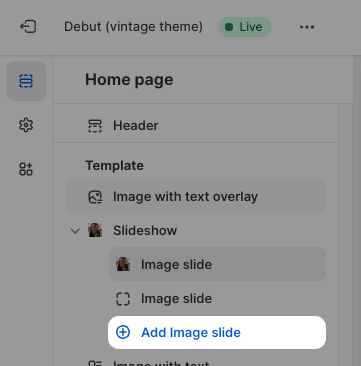
In the left sidebar, click the next Image slide and repeat steps 1-9 to set up your next review
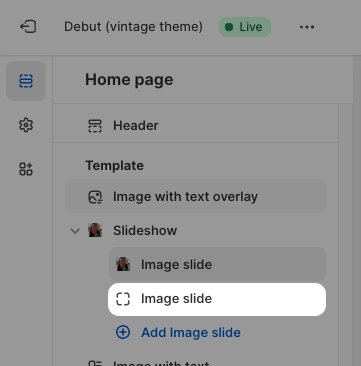
In the left sidebar, click Add Image slide to add another slide to your carousel, then repeat steps 1-9 for each new slide
Create an Image With Text Block
Shopify's image with text block is a great way to display multiple hand picked reviews with images. Read about Shopify's image with text block for detailed information about the available customization options!
To create an image with text block like the example above:
Click Sales Channels
Click Online Store
Next to your active theme's name, click Customize
On the theme preview page, hover between section where you want to place your carousel and click Add Section
Click Image with Text
Click into the Image with Text block
Drag the image you saved from your review into the image window
Copy the following text based star symbols:
★★★★★Click into the heading of the image with text block
Paste the stars in the Heading field
Copy the review's text
Click into the text area below the heading
Paste the review text into the Content field
To remove the optional button, click into the button and click the trash can icon
Scroll down the Image with Text block settings sidebar to Custom CSS
Click Custom CSS
Enter the following snippet into the custom CSS field
h2 {
  color: ;
}
Paste the color hex code you copied from the reviews widget styling page (including #) between
:and;Repeat steps 1-18 for each review
Create a Multicolumn Block
Shopify's multicolumn block is a great way to display multiple hand picked reviews with images. Read about Shopify's multicolumn block for detailed information about the available customization options!
To create a multicolumn block like the example above:
Click Sales Channels
Click Online Store
Next to your active theme's name, click Customize
On the theme preview page, hover between section where you want to place your carousel and click Add Section
Click Multicolumn
Drag the image you saved from your review into the image window
Copy the following text based star symbols and paste them into the Heading field:
★★★★★Copy the text of the review and paste it into the Subheading field
Click out of the individual column and into the multicolumn block
Click Custom CSS
Enter the following snippet into the custom CSS field
h3 {
  color: ;
}
Paste the color hex code you copied from the reviews widget styling page (including #) between
:and;Repeat steps 1-8 for each review