How to use templating syntax based personalization
Last updated: July 11, 2025
Overview
Personalization tags are piece of templating syntax that pull information stored in contact profiles into email and SMS messages, allowing you to personalize your content to each individual contact without having to write out each piece of information manually.
Refer to 📄 Templating syntax and personalization reference guide for details on what data is available to you for personalization.
Read on to learn how to incorporate personalization into your email and SMS marketing efforts!
Before getting started
If you plan to use custom fields to personalize email or SMS content, create them in Sendlane and collect data from contacts.
Insert personalization in email subject lines
Click into the subject line where you want the personalization to appear
Click the tag icon
Select a personalization tag
Insert personalization in email content
Click into the email wherever you want personalization to appear
Click the three dot menu
Click the personalization icon
Click the Select Personalization dropdown
Select a personalization
If contacts have data for the selected custom field, they'll see their data where the personalization tag was inserted.
If contacts do not have data for the inserted custom field, they will see a blank space unless you create a default value for the field.
How do I change the font styling for an inserted personalization?
When you select a custom field or templating syntax personalization from a dropdown, the syntax is inserted into the email as a snippet with protections that help avoid breaking the syntax.
To change the styling of an inserted syntax snippet:
Use your cursor to select the snippet (you may need to select the space just before and after the snippet)
Paste the snippet somewhere else to remove the formatting by pressing
CMD/CTRL+Shift+VCopy the snippet from where it was pasted in the previous step
Paste the snippet back into your email
Format the text as normal
Insert personalization in SMS messages
Click into the SMS message where you want personalization to appear
Click the personalization icon
Select a personalization
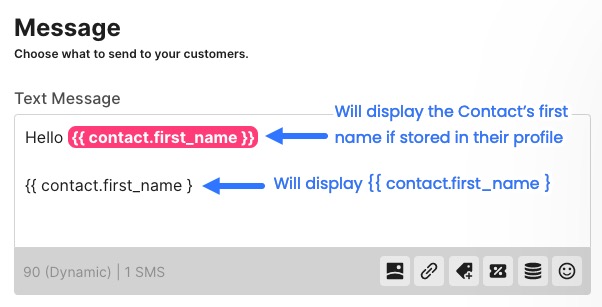
Personalization in SMS must be highlighted pink
Personalization selected from the personalization icon will be highlighted in pink when you insert it into your SMS.
Highlighted pink personalization will pull data from contact profiles and display it in the message contacts receive.
If personalization is not highlighted pink, it will not pull contact data and will display as a broken personalization tag in the message contacts receive.
Create a default value for personalization
See How to set a default value for a personalization tag.
Troubleshooting
My contact's personalization tag isn't populating with their data!
You may not see populated personalization tags for two common reasons:
The contact's profile doesn't have data in the specified field. Contact profiles without data in personalization tag fields will see a blank space where that personalization tag is inserted in any email they receive unless you set a default value.
There is a typo in the personalization tag. Copy and paste personalization tags from the personalization tab of the audience page or this help doc to avoid typos.
How can I see available syntax options in an SMS message?
The json_encode function can only be used in an email.
If you are creating an SMS only automation, add an email node to view available options, then delete the email node when you are finished building your automation.